Customization tips for Windows 11’s Start menu and taskbar
This article looks at Start11, which can be used to customize styles, search, pin folder menus, and taskbars.
Q. Your April article (“Optimize Windows 11 With These 8 Settings Tweaks“) had good tips for adjusting the Start menu and taskbar, but I’d like to do more. How can I go deeper into customization?
A. Windows 11’s customization features are limited. Creating a completely customized experience requires using a Start menu replacement tool. Several such tools exist, both paid and free, with and without taskbar customization. I recently converted to Start11 from Stardock, which one of my engineers has been using for a couple of years. Start11 can change the Start menu’s style to use the Windows 10 tiles, add colors and custom logos, add a better search, and pin folder menus. The app also provides taskbar customization options.
Installation
Start11 requires a paid license, but a 30-day trial is available. To access the trial, click Try free on Stardock’s Start11 web page. The download will begin in a few seconds. Click Next on each install screen to complete the installation.
Customize the tiles
Once the installation is complete, Start11 will ask how the taskbar should be aligned. There are some settings in Windows 11 that I have gotten used to, like a centered taskbar, so I will leave it in the center.
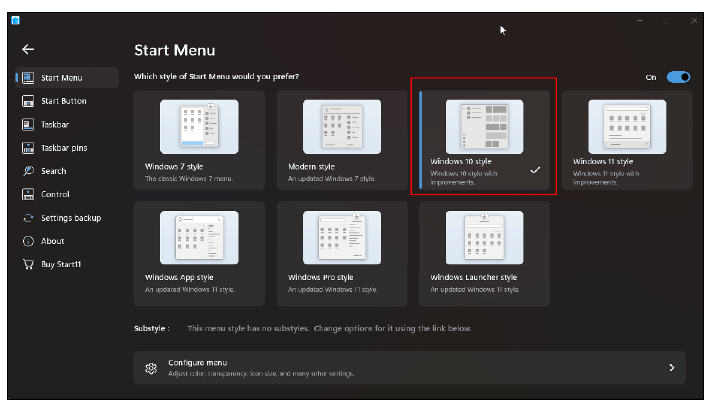
For style, I use the Windows 10 style that uses tiles for applications in the right-side panel. The left panel includes a list of all applications and Windows quick icons. When Start11 first loaded, it pulled all the icons from the original Start menu into tiles. I had two initial tasks: rearrange the tiles and add a color background to the applications I use the most. Rearranging the tiles is done by clicking and dragging the tiles where I want them. To change a tile’s size, I right-click on the tile and use the resize menu to select a size. I leave my most seldom-used applications Small, my frequently used applications Medium, and my most frequent applications Wide. For color, I right-click on the icon, go to Icon Color, and select a color. I like to add color because it helps draw my eye to my most-launched applications. This is my Start menu after cleaning and organizing.
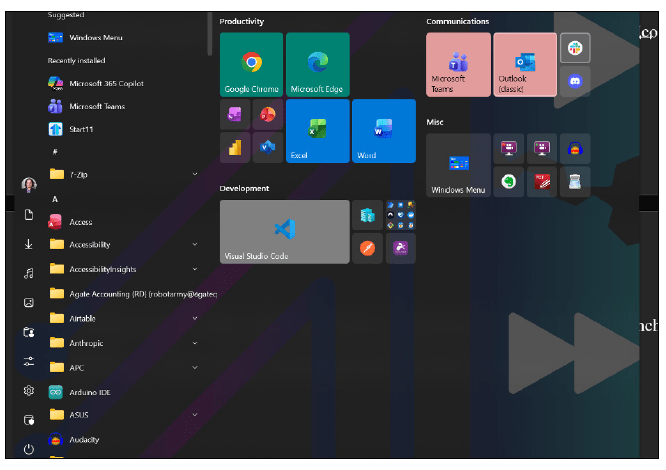
One additional note on the Windows 10 style is that it removes the Recent Documents area. If I ever want to look at the Windows 11 menu, I can click on the Windows Menu tile. Now I lock the tiles in place by right-clicking on an empty space in the Start menu and selecting Lock.
Branding
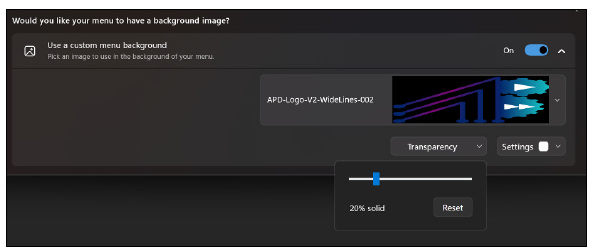
I like to have some branding for my computer. My desktop background is my company logo. With Start11, I can add my logo to the background of the Start menu like in the previous screenshot. To add a background image, go to the Start11 configuration window, then Start Menu Configure menu Customize Visual Appearance. At the bottom, expand Use a custom menu background. I added my logo and set the transparency to 20%, as shown in the following screenshot.
Taskbar settings
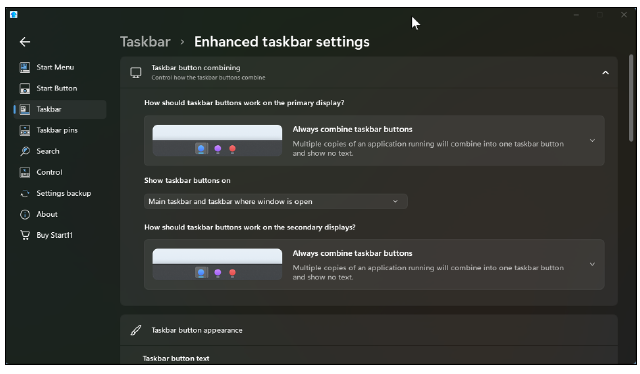
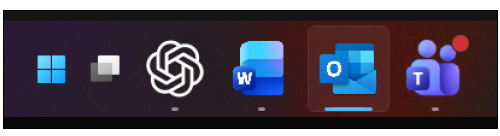
For the Taskbar, I want to make some adjustments. First, I have gotten used to similar icons being grouped together, but applying the Windows 10 style turned that off. To turn it back on, I go into the Start11 configuration menu, Taskbar section, and click on Enhanced taskbar settings. In the top section, under Taskbar button combining, I set up both to Always combine taskbar buttons for primary and secondary display. I also set Show taskbar buttons on to Main taskbar and taskbar where window is open. This last setting combines all taskbar icons on my primary screen, but each secondary screen will only have the icons for the window that is open on that screen.
Primary screen taskbar

Secondary screen taskbar
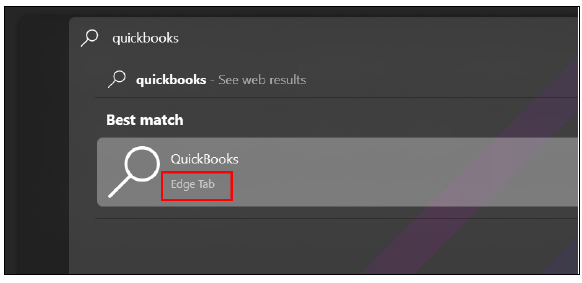
Searching Edge from Start11
A helpful feature is searching tabs. Microsoft Edge is my primary browser. Many of the applications I use are browser-based, and I may have between 75 and 80 tabs open at once. While my tabs are organized into groups, that is still a lot of tabs. If I want to jump to a specific tab without reviewing every group or open tab, I can do a search in Start11. I press the Start key (which has a Microsoft logo) on the bottom left corner of my keyboard and start typing. Pressing Enter instantly brings up that tab in Edge.
Pin folders, files, and folder menus
I have a few folders and files I open frequently throughout the day. Start11 gives you the option to add folders to your taskbar. In my case, I want to pin the Excel file I use for budgets, my folder of clients, and a folder menu of conferences I attend.
In Start11, I go to Taskbar pins and click on Pin file. I browse for the file I want to pin and confirm the pin on the pop-up. For the client folder, I click on Pin folder and browse for my client folder, just like the file pin.
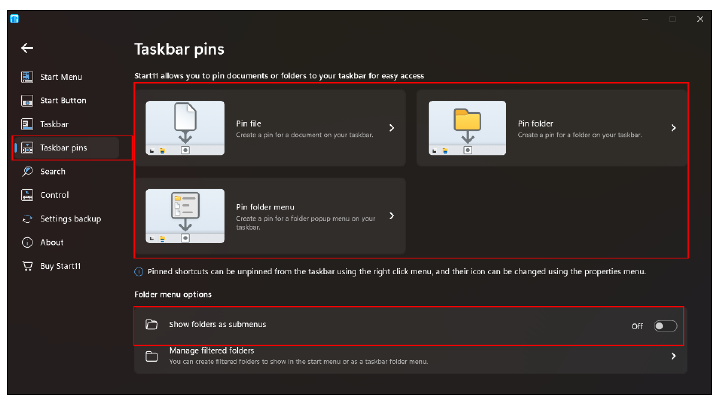
Pinning the folder menu is the same process. Clicking on the Pin folder menu icon displays a menu of the folder’s contents. This is ideal for folders I frequently go to but then always drill down at least one more level. For example, I have a folder called Conferences that contains subfolders for each year. The subfolders are what I want to access. So, when I click on Conferences, it shows me the years in the pop-up, as shown in the following screenshot.
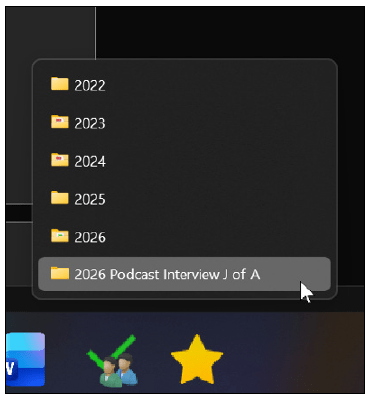
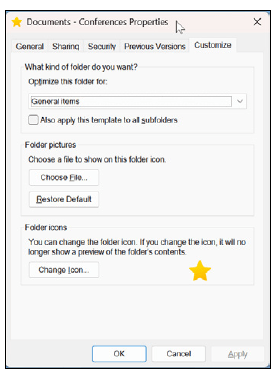
The folder icons can be changed by right-clicking on the folder in the explorer, going to Properties and into the Customize tab.
Transferring settings
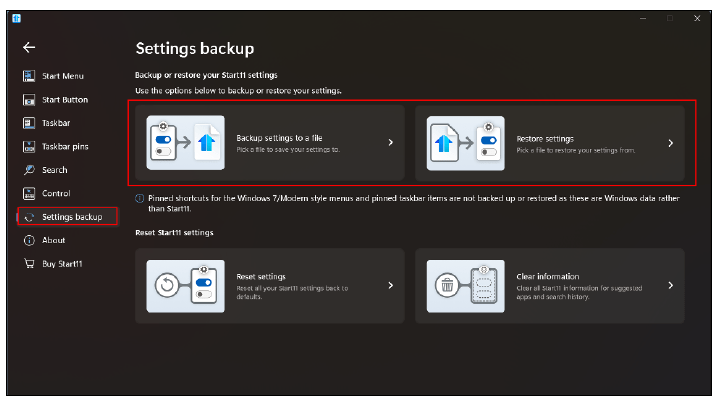
These settings can be transferred to other computers. One purchase allows for five activations. I can activate this on my desktop, laptop, and virtual desktop, applying a consistent style across all my devices. From the Start11 configuration menu, I go to Settings backup and click Backup settings to a file. I transfer this file to Restore settings on the other devices.
The customizations can get extremely detailed in Start11. I scratched the surface of what can be done to make the Start menu and taskbar experience more visually appealing.
About the author
Wesley Hartman is the founder of Automata Practice Development.
Submit a question
Do you have technology questions for this column? Or, after reading an answer, do you have a better solution? Send them to jofatech@aicpa.org.