How to use the SCAN function to replace running totals in Excel
Excel’s SCAN function provides a dynamic alternative that calculates running totals without copying formulas.
Q. I often calculate cumulative financial results in Excel by copying formulas down a column. Is there a more efficient and reliable method?
A. Yes. Excel’s SCAN function provides a dynamic alternative that calculates running totals without copying formulas. Running totals are one of the most common calculations performed in Excel, particularly in accounting and financial reporting. Accountants routinely track cumulative balances such as retained earnings, cash flow, and loan balances. Although these calculations are typically performed by copying formulas down a column, that approach can introduce errors, require ongoing maintenance, and make spreadsheets more difficult to audit. Instead of building a formula in one cell and extending it downward, SCAN processes an entire range at once and returns all intermediate results. This makes it especially useful for accountants working with cumulative balances.
Let’s look at an example of how to use SCAN. You can download the Excel file used for this walk-through and view a video demonstration at the end of this Technology Q&A item. I used Microsoft Excel 365 for PCs to create this example. Other Excel versions may work differently.
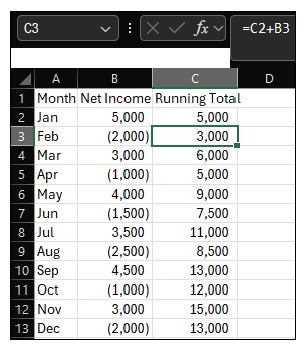
Running totals are traditionally calculated by users entering a formula in the first row and then copying it downward. For example, if monthly net income is stored in cells B2:B13, a running total is calculated by entering =B2 in cell C2, then entering =C2+B3 in cell C3, and copying the formula throughout the remaining rows. While effective, this approach has several limitations. Formulas must be copied manually, increasing the risk of inconsistency. If one formula is overwritten or misaligned, the entire calculation may be incorrect. In addition, extending the dataset to include new periods requires updating formulas again. See the screenshot below for this traditional method used to keep a running total of net income throughout the year.
The SCAN function improves this process by replacing an entire column of formulas with a single dynamic formula. To calculate a running total using SCAN, select cell C2 and enter the following:
=SCAN(0,B2:B13,LAMBDA(a,b,a+b))
After pressing Enter, Excel automatically spills the results down the column, returning a running total for each period. See the screenshot below for doing the same running total as earlier using SCAN.
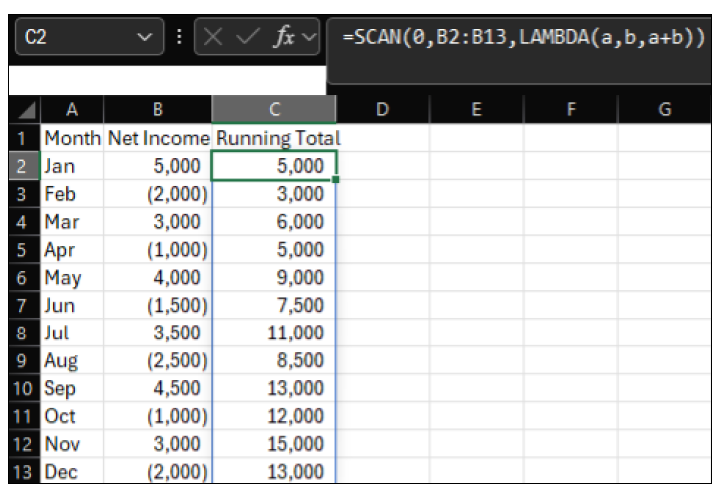
The SCAN function consists of three components (an explanation of the related logic appears further below). The first argument, Initial_value, represents the starting value (0). The second argument, Array, is the range of values being processed (B2:B13). The third argument, Function, uses a LAMBDA function to define the calculation. In this case, LAMBDA(a,b,a+b) instructs Excel to add each value to the accumulated total. To learn more about LAMBDA, see the May 2022 Technology Q&A article, “Create Your Own Custom Excel Functions With LAMBDA.” As Excel processes the range, it applies this logic sequentially, producing a full set of cumulative results.
The logic behind this is as follows:
For the first row using our formula:
a = 0 (our first argument)
b = 5,000 (the amount of net income in January, which is in the range we selected in the second argument)
a+b = 5,000 (the amount of the running total in January because of the LAMBDA formula used in the third argument)
For the second row using our formula:
a = 5,000 (is the new value for the LAMBDA formula, representing the running total of net income from January)
b = (2,000) (is the net income for February)
a+b = 3,000 (is the accumulation of the January running total and the February net income because the LAMBDA we created states a+b)
Although it may seem a little tricky, it tends to make a lot of sense after using it a few times. But if it can seem tricky, why use it?
SCAN offers several benefits compared to traditional methods. First, it eliminates the need to copy formulas, reducing manual effort. Second, it minimizes the risk of errors by ensuring that all calculations are derived from a single formula. Third, it improves auditability, as reviewers can evaluate one formula instead of many. Finally, it enhances scalability, allowing the same approach to be applied to larger datasets.
One example of why using SCAN over the traditional method makes sense is the monthly close process, when accountants frequently prepare schedules that track cumulative balances. For example, retained earnings schedules require net income to be accumulated over time. Using traditional formulas, each new period requires extending the calculation and verifying references. Over time, this can lead to broken formulas or inconsistencies.
With SCAN, the entire calculation is handled in a single formula. When new data is added, the formula can be extended simply by adjusting the range, making the process more efficient and reliable. SCAN can incorporate a beginning balance to produce a rolling retained earnings schedule. For example, if the beginning retained earnings is 50,000 and monthly net income is stored in B2:B13, enter the following formula in C2:
=SCAN(50000,B2:B13,LAMBDA(a,b,a+b))
This produces a retained earnings balance for each period. Note that this is the same formula as in our example above, but this time we set the initial value to 50,000, since that was our retained earnings beginning balance.
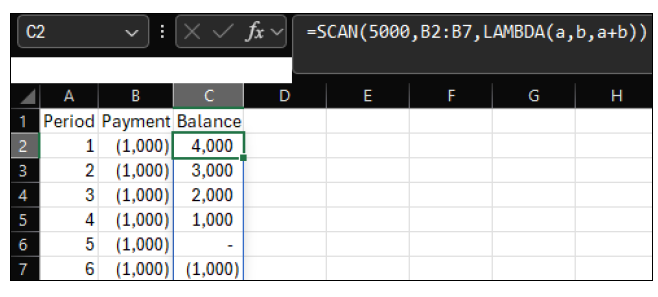
SCAN can also be used for loan balances. If an initial loan balance is 5,000 and payments are listed as negative values in cells B2:B7, enter:
=SCAN(5000,B2:B7,LAMBDA(a,b,a+b))
Excel will return the remaining balances after each payment. See the screenshot below for this loan schedule.
Additional uses of SCAN include cumulative revenue tracking, budget variance accumulation, and inventory rollforwards. Any situation that requires sequential accumulation can benefit from SCAN.
The SCAN function allows accountants to replace repetitive running total formulas with a single dynamic calculation. By reducing manual steps and consolidating logic, SCAN improves accuracy, transparency, and efficiency in Excel-based financial models.
About the author
Kelly L. Williams, CPA, Ph.D., MBA, is an associate professor of accounting at the Jones College of Business at Middle Tennessee State University.
Submit a question
Do you have technology questions for this column? Or, after reading an answer, do you have a better solution? Send them to jofatech@aicpa.org.