Skip to content
AICPA-CIMA
  • AICPA & CIMA:
  • Home
  • Engage 365 Communities
  • CPE & Learning
  • My Account
Journal of Accountancy
  • TECH & AI
    • All articles
    • Artificial Intelligence (AI)
    • Microsoft Excel
    • Information Security & Privacy

    Latest Stories

    • AICPA Top Issues Survey: Firms’ focus on technology rises
    • Advisory panel urges sustained IRS funding, expanded AI, tax simplification
    •  What it takes for a CFO to lead operations and tech

  • TAX
    • All articles
    • Corporations
    • Employee benefits
    • Individuals
    • IRS procedure

    Latest Stories

    • Advisory panel urges sustained IRS funding, expanded AI, tax simplification
    • About a quarter of callers to two IRS lines got poor service, TIGTA says
    • TIGTA: IRS reassigned staff after layoffs for filing season
  • PRACTICE MANAGEMENT
    • All articles
    • Diversity, equity & inclusion
    • Human capital
    • Firm operations
    • Practice growth & client service

    Latest Stories

    • AICPA Top Issues Survey: Firms’ focus on technology rises
    • Advisory panel urges sustained IRS funding, expanded AI, tax simplification
    • FASB seeks comment on hedge accounting guidance
  • FINANCIAL REPORTING
    • All articles
    • FASB reporting
    • IFRS
    • Private company reporting
    • SEC compliance and reporting

    Latest Stories

    • SEC shares 3 goals in proposed 2026–2030 strategic plan
    • SEC proposes rescission of climate disclosure rules
    • SEC proposes semiannual reporting option for public companies
  • AUDIT
    • All articles
    • Attestation
    • Audit
    • Compilation and review
    • Peer review
    • Quality Management

    Latest Stories

    • How to monitor a firm’s system of quality management
    • AICPA guides peer reviewers to address SOC 2 risks
    • Proposed new sustainability information AT-C sections
  • MANAGEMENT ACCOUNTING
    • All articles
    • Business planning
    • Human resources
    • Risk management
    • Strategy

    Latest Stories

    •  What it takes for a CFO to lead operations and tech
    • Optimism mixed among US finance leaders
    • AI for CPAs: From efficiency tool to decision engine
  • Home
  • News
  • Magazine
  • Podcast
  • Topics
Advertisement
  1. newsletter
  2. Extra Credit
Extra Credit Cover

Use VLOOKUP to help manage your gradebook

By Wendy Tietz, CPA, Ph.D.; Jennifer Cainas, CPA, DBA; and Tracie Miller-Nobles, CPA
December 8, 2020

Please note: This item is from our archives and was published in 2020. It is provided for historical reference. The content may be out of date and links may no longer function.

Related

November 10, 2020

Use the Quick Access Toolbar to increase your efficiency in Excel

July 14, 2020

Use Excel’s sparklines to quickly show trends in data

TOPICS

  • Technology
    • Microsoft Excel
  • Accounting Education

VLOOKUP is a formula that allows you to “look up” certain data and retrieve it into another table, by row. This function can be especially useful when you have a well-structured table with information organized by rows (such as a gradebook)!

Here’s an example of how we use VLOOKUP for grading: We currently use a classroom response system in our mass lecture classes to encourage attendance. Each class has over 450 students responding to questions throughout the class period, and we award points based on correct answers. At the end of each class period, we download the classroom response system results into an Excel spreadsheet, but need to bring these grades into our gradebooks, which are set up with 12 sections of 40–50 students. We can easily sort out student grades by section using the VLOOKUP function.   

Below are two screenshots, one showing the grades for the entire class (from the response system) and the other showing part of a gradebook for one section. Say that you need to move the data in the Totals column from the class response system file to the Points column in the section’s gradebook. Here’s how you’d use VLOOKUP to do that:

vlookup-0


Step 1: Highlight the cell to start the formula.
Put your cursor in the “Points” column in the first student’s row (cell D2).

Step 2: Build the first VLOOKUP formula. All formulas begin with an equal sign ( = ).  These are the components of the VLOOKUP formula:

VLOOKUP(lookup_value, table_array, col_index_num, [range-lookup])

  • Lookup_value: The value you want to look up; this is the student’s email address in Column C (cell C2)
  • Table_array: Where to look for the data; this is the entire listing (or export file) of student grades from the response system (cells A2-B21)
  • Col_index_num: This indicates the column number containing the value to retrieve. In this example, enter 2 or column B.
  • Range_lookup (optional): This returns either an approximate match (true) or exact match (false).

Keep in mind one limitation of VLOOKUP: the column being searched needs to be to the left of the column with the data being returned.

Advertisement

Below are the steps to complete the formula.

Step 2.1: With the cursor in cell D2, type =VLOOKUP(

vlookup-1


Step 2.2:
With the mouse, click on the first email address (cell C2). Add a comma after the C2 in the formula: VLOOKUP(C2

vlookup-2


Step 2.3:
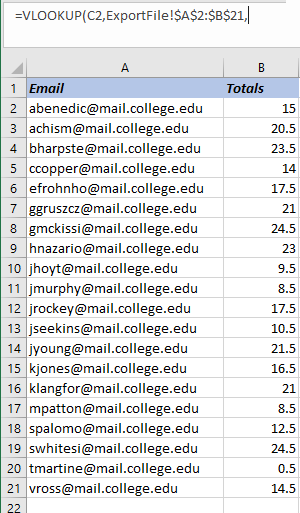
Go to the export file and with the mouse highlight the entire area. Before you enter a comma to move on, you will need to “lock” the values (A2:B21) in place. Otherwise, when you copy the formula down in the gradebook, these values will change. To lock these values in place, use a “$” sign in front of each variable. Add a comma at the end. Your formula will look like the one below.

=VLOOKUP(C2,ExportFile!$A$2:$B$21,
vlookup-3


Step 2.4:
Enter “2” because you want to look up data in column 1 (email) and bring back the grade (in column 2). Add a comma.

=VLOOKUP(C2,ExportFile!$A$2:$B$21,2,

Advertisement

Step 2.5: Type “true” if you need an approximate match. Type “false” if you want an exact match. In this case you’d want an exact email match, so type in “false.” Then type a closed parenthesis.

=VLOOKUP(C2,ExportFile!$A$2:$B$21,2,false)

Step 2.6: Hit enter and the formula is set.

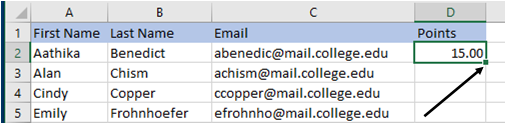
Step 3: From here your cursor is still in cell D2. Copy the formula all the way down your list by double clicking on the little green square on the lower right-hand corner of the cell.
vlookup-4


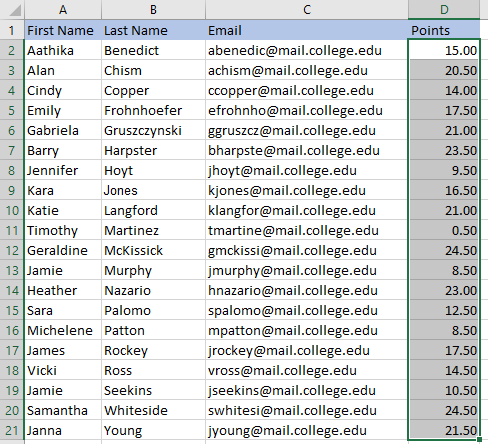
Below is how your file should look, with all of the grades for this section inputted from the other sheet:
vlookup-5


VLOOKUP is an excellent, time-saving function that can help you manage your gradebook quickly and efficiently, especially for larger classes. It’s is also an excellent function to teach your students, if they need to bring information from one Excel file to another. The VLOOKUP function works on both Windows and Mac.

Editor’s note: If you have Excel 365, you may want to try the new XLOOKUP function as well. Learn more in this article.

Advertisement

— Wendy Tietz, CPA, CGMA, Ph.D., is a professor of accounting at Kent State University in Kent. Ohio; Jennifer Cainas, CPA, DBA, is an instructor of accountancy at the University of South Florida in Tampa; and Tracie Miller-Nobles, CPA, is an associate professor of accounting at Austin Community College in Austin, Texas. See their site AccountingIsAnalytics.com for resources they have developed for teaching data analytics in introductory accounting. To comment on this article or to suggest an idea for another article, contact senior editor Courtney Vien at Courtney.Vien@aicpa-cima.com.


Advertisement

latest news

June 23, 2026

AICPA Top Issues Survey: Firms’ focus on technology rises

June 18, 2026

Advisory panel urges sustained IRS funding, expanded AI, tax simplification

June 17, 2026

FASB seeks comment on hedge accounting guidance

June 16, 2026

About a quarter of callers to two IRS lines got poor service, TIGTA says

June 16, 2026

Crowe partners with private equity; Baker Tilly on the move

Advertisement

Most Read

Defining commonly used AI terms
5 human competencies CPAs need in the AI age
IRS appeals Kwong as advocate says refunds may be at stake
HSA inflation-adjusted maximum contribution amounts for 2027 announced
Profession Ready Initiative targets gaps in early-career CPA readiness
Advertisement

Podcast

June 18, 2026

Why mindset may matter more than technology adoption

June 16, 2026

How retaliation risk complicates fraud investigations

June 10, 2026

The power of active listening in addressing the CPA skills gap

Features

New AICPA chair pitches a people-first profession

New AICPA chair pitches a people-first profession

Rise2040: A human-led profession built on trust

Rise2040: A human-led profession built on trust

 What it takes for a CFO to lead operations and tech
 What it takes for a CFO to lead operations and tech

 What it takes for a CFO to lead operations and tech

4 ways sole practitioners can set themselves apart

4 ways sole practitioners can set themselves apart

FROM THIS MONTH'S ISSUE

New AICPA chair pitches a people-first profession

New AICPA Chair Jan Lewis shares why listening and service are central to her leadership approach. From advocating for small firms to navigating AI and strengthening the talent pipeline, Lewis outlines how she plans to steward a profession built on trust, relevance, and opportunity.

From The Tax Adviser

May 31, 2026

Trust distributions: Timing, tax, and practical considerations

May 31, 2026

Current developments in taxation of individuals: Part 3

April 30, 2026

Current developments in taxation of individuals: Part 2

April 30, 2026

Hedge funds: Tax structuring, planning, and compliance

MAGAZINE

June 2026

June 2026

June 2026
May 2026

May 2026

May 2026
April 2026

April 2026

April 2026
March 2026

March 2026

March 2026
February 2026

February 2026

February 2026
January 2026

January 2026

January 2026
December 2025

December 2025

December 2025
November 2025

November 2025

November 2025
October 2025

October 2025

October 2025
September 2025

September 2025

September 2025
August 2025

August 2025

August 2025
July 2025

July 2025

July 2025
view all

View All

http://JofA_Default_Mag_cover_small_official_blue

PUSH NOTIFICATIONS

Learn about important news

This quick guide walks you through the process of enabling and troubleshooting push notifications from the JofA on your computer or phone.

CPA LETTER DAILY EMAIL

CPA Letter Logo

Subscribe to the daily CPA Letter

Stay on top of the biggest news affecting the profession every business day. Follow this link to your marketing preferences on aicpa-cima.com to subscribe. If you don't already have an aicpa-cima.com account, create one for free and then navigate to your marketing preferences.

Connect

  • X Logo JofA on X
  • facebook JofA on Facebook

HOME

  • News
  • Monthly issues
  • Podcast
  • A&A Focus
  • PFP Digest
  • Academic Update
  • Topics
  • RSS feed rss feed
  • Site map

ABOUT

  • Contact us
  • Advertise
  • Submit an article
  • Editorial calendar
  • Privacy policy
  • Terms & conditions

SUBSCRIBE

  • Academic Update
  • CPE Express

AICPA & CIMA SITES

  • AICPA-CIMA.com
  • Global Engagement Center
  • Financial Management (FM)
  • The Tax Adviser
  • AICPA Insights
  • Global Career Hub
AICPA & CIMA

© 2026 Association of International Certified Professional Accountants. All rights reserved.

Reliable. Resourceful. Respected.