4 Excel features that make reviewing large spreadsheets easier
Q. I frequently work with large Excel workbooks containing thousands of rows, multiple worksheets, and complex supporting schedules. Navigating these workbooks and reviewing information can be time–consuming. Are there Excel features that can make reviewing large spreadsheets easier and more efficient?
A. The answer is yes. Many accounting professionals spend significant time reviewing large spreadsheets containing trial balances, reconciliations, financial statements, budgets, forecasts, and supporting schedules. As these workbooks grow in size, simply locating information can be challenging. Excessive scrolling, switching between worksheets, and repeatedly searching for key calculations can make the review process inefficient and increase the likelihood of overlooking important information.
Fortunately, Excel includes several built-in features designed specifically to improve workbook navigation and review. Although many users are familiar with basic scrolling and worksheet tabs, fewer take advantage of tools such as Freeze Panes, Split, New Window, and Watch Window. These features can help reviewers spend less time navigating spreadsheets and more time analyzing the underlying data. Let’s review some examples of how these features work.
I used Microsoft Excel 365 for PCs to create these examples for using Excel features to review large spreadsheets. Other Excel versions may work differently. A video demonstration of using these features is available at the end of this item, and you can download the Excel file I used.
The first feature is Freeze Panes. Large accounting datasets often contain column headings and identifying information that disappear when users scroll through hundreds or thousands of rows or columns. This can make it difficult to determine which data belongs in each column or row.
To use Freeze Panes, select the row (or column) below the rows (or to the right of the columns) you want to keep visible. From the ribbon, select View, Freeze Panes, then Freeze Panes.
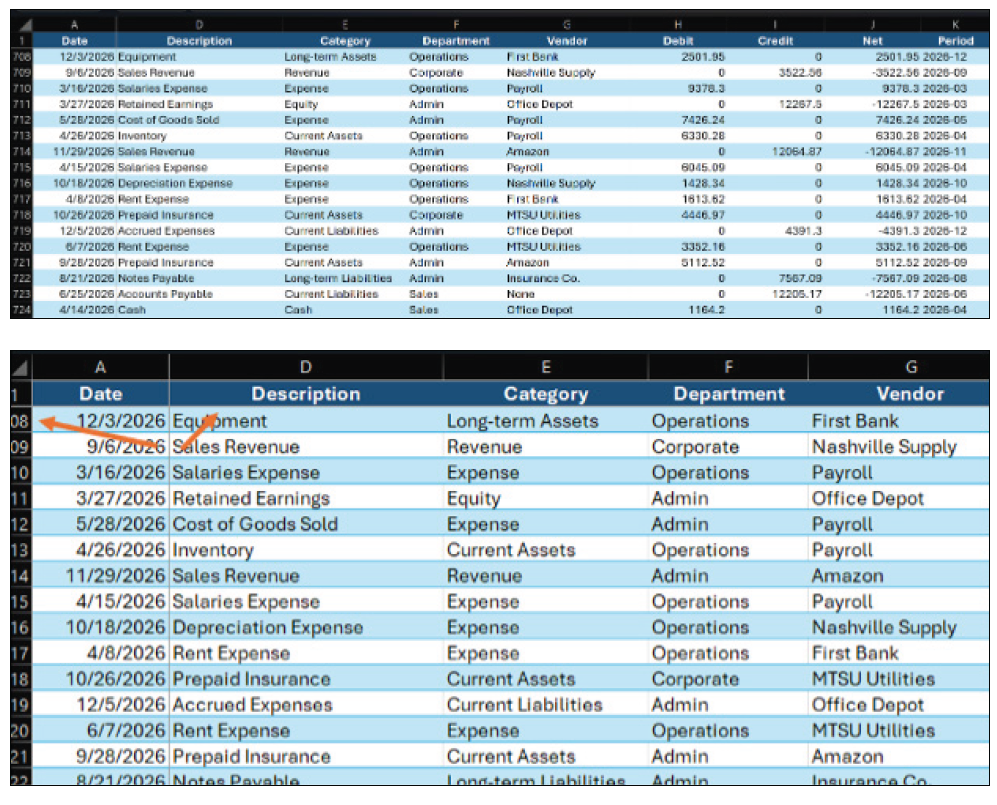
For example, suppose a worksheet contains several thousand general ledger transactions with headings in row 1. After freezing the top row, the headings remain visible regardless of how far the user scrolls down the worksheet. I have audited enough large spreadsheets to say this is extremely helpful. Similarly, users can freeze both rows and columns. This can be helpful when reviewing large financial datasets in which account descriptions appear in the first column but transaction details span numerous additional columns. Repeat the previous steps while your cursor is in cell B2 (the row below the headers and the column to the right of the first date). The result is improved readability and reduced scrolling during the review process, as shown in the following screenshot.
The next feature is Split. Reviewing information located in different sections of the same worksheet often requires users to repeatedly scroll back and forth. Split eliminates this problem by dividing the worksheet into multiple independent viewing panes. As an example, suppose an Excel spreadsheet contains a bank reconciliation summary near the top of the worksheet and several supporting transactions farther down. Rather than repeatedly scrolling between the summary and supporting detail, use the Split feature. Excel divides the worksheet into separate panes that keep both sections visible during the review process. In our example, place your cursor in cell A9, select View, then select Split. The following screenshot shows the results.
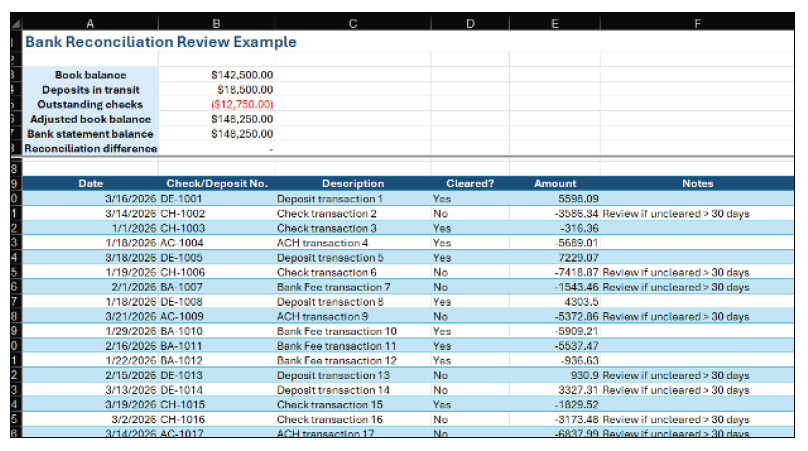
Unlike Freeze Panes, which locks specific rows or columns in place, Split creates multiple, fully functional viewing areas within the same worksheet. Excel divides the worksheet into separate panes, allowing both sections to remain simultaneously visible and fully functional during the review process. That is, you can access the entire worksheet in either pane, leaving one showing a static view and scrolling through data in the other, scrolling in both to further compare contents, etc. This capability is particularly useful when reviewing lengthy account reconciliations, transaction listings, or supporting schedules that span hundreds of rows.
Another useful review feature is New Window. Many accountants work with summary schedules that reference detailed supporting schedules located elsewhere in the same workbook. Constantly switching between worksheet tabs can interrupt workflow and make comparisons difficult. The New Window feature creates a second view of the same workbook.
Let’s review an example. We have a trial balance with several accounts. We can open a second view of the same workbook. One window can display the trial balance while another displays financial statements or supporting schedules, reducing the need to constantly switch between worksheets. Simply select View, then select New Window, then arrange your screen so both windows are visible. The following screenshot shows the result.
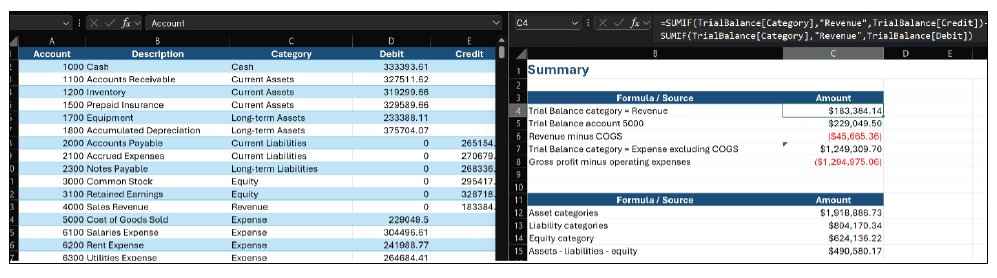
Instead of having to flip back and forth to link cells to another worksheet, New Window allows a second view of the same workbook, and changes made in either window automatically update the workbook because both windows reference the same file. This is convenient when linking more than a couple of cells from a different worksheet.
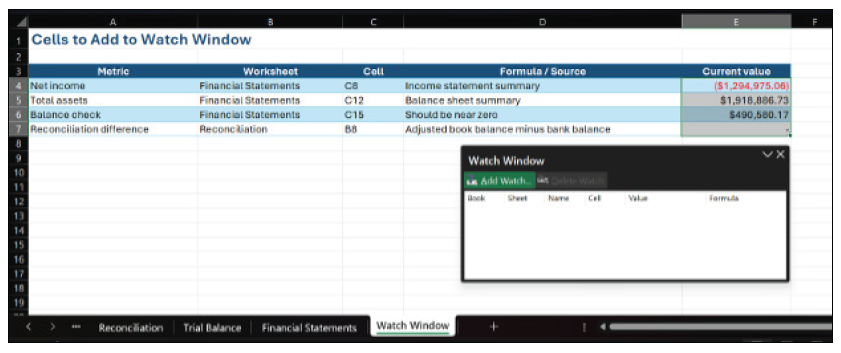
The final feature is Watch Window. One common challenge when reviewing large workbooks is monitoring important calculations while working elsewhere in the file. Users often find themselves repeatedly navigating back to summary worksheets to confirm that key balances remain accurate. Watch Window solves this problem. Users can select important cells containing key metrics such as net income, total assets, cash balances, reconciliation differences, or financial ratios. The Watch Window displays these values in a separate panel that remains available as users move throughout the workbook.
For example, a controller updating forecast assumptions can monitor projected net income without repeatedly returning to the income statement worksheet. Similarly, an auditor can monitor reconciliation differences while reviewing supporting schedules located elsewhere in the workbook. This is shown in the last Excel worksheet of our example workbook. Because the watched values update automatically whenever underlying data changes, reviewers can immediately identify the impact of their work. Select Formulas, then Watch Window. The result appears in the following screenshot (alternatively, the Watch Window might appear as a floating window that you can move around the worksheet).
The screenshot and example spreadsheet have the information preselected and show an alternate view from what you may see when first trying this on a separate spreadsheet.
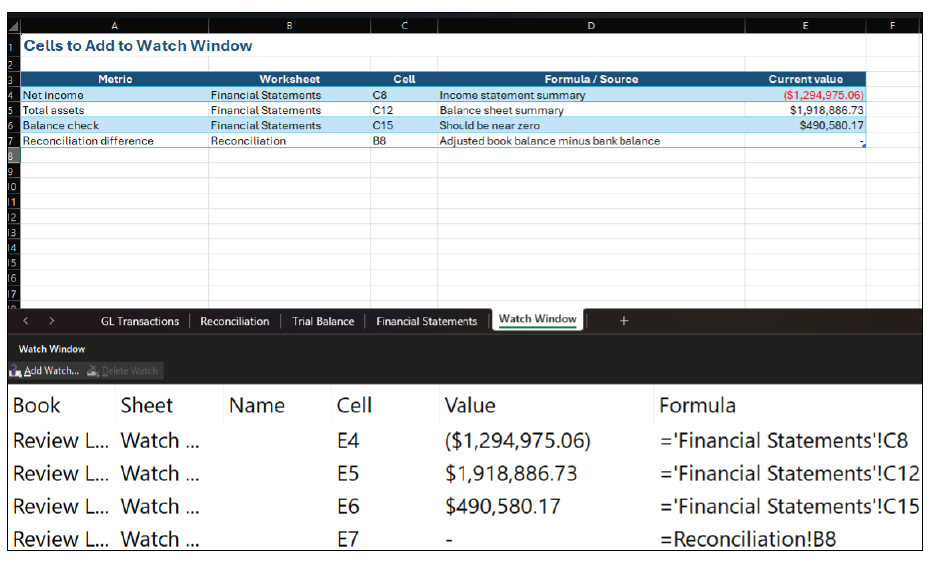
To create the Watch Window from the beginning, select cells E4:E7, go to Formulas then Watch Window. Then, click Add Watch in the Watch Window. See the following screenshot.
Large spreadsheets are a reality for many accounting professionals. Whether they are reviewing financial statements or any other extensive data, excessive navigation can reduce efficiency and increase frustration. Fortunately, Excel includes several built-in features that can simplify the review process. Freeze Panes keeps important headings visible; Split allows users to view different sections of the same worksheet simultaneously; New Window creates multiple views of a workbook; and Watch Window enables users to monitor critical calculations while working elsewhere in the file. Individually, each feature can save valuable time. Together, they provide a simple but effective toolkit for navigating and reviewing large spreadsheets more efficiently.
About the author
Kelly L. Williams, CPA, Ph.D., MBA, is an associate professor of accounting at the Jones College of Business at Middle Tennessee State University.
Submit a question
Do you have technology questions for this column? Or, after reading an answer, do you have a better solution? Send them to jofatech@aicpa.org.