Skip to content
AICPA-CIMA
  • AICPA & CIMA:
  • Home
  • Engage 365 Communities
  • CPE & Learning
  • My Account
Journal of Accountancy
  • TECH & AI
    • All articles
    • Artificial Intelligence (AI)
    • Microsoft Excel
    • Information Security & Privacy

    Latest Stories

    • Accounting ethics in the age of AI
    • Real-life ways small firms use AI
    • How to set up a simple automation in Zapier

  • TAX
    • All articles
    • Corporations
    • Employee benefits
    • Individuals
    • IRS procedure

    Latest Stories

    • Proposed rules would restrict Trump account eligible investments
    • IRS shifts approach to conservation easement disputes
    • IRS provides guidance on rollovers between retirement plans and IRAs
  • PRACTICE MANAGEMENT
    • All articles
    • Diversity, equity & inclusion
    • Human capital
    • Firm operations
    • Practice growth & client service

    Latest Stories

    • Proposed rules would restrict Trump account eligible investments
    • ASB approves standard on auditors’ responsibilities relating to fraud
    • IRS shifts approach to conservation easement disputes
  • FINANCIAL REPORTING
    • All articles
    • FASB reporting
    • IFRS
    • Private company reporting
    • SEC compliance and reporting

    Latest Stories

    • SEC proposal aims to clarify securities rules for crypto assets
    • SEC eyes e-delivery as the default over paper
    • SEC shares 3 goals in proposed 2026–2030 strategic plan
  • AUDIT
    • All articles
    • Attestation
    • Audit
    • Compilation and review
    • Peer review
    • Quality Management

    Latest Stories

    • ASB approves standard on auditors’ responsibilities relating to fraud
    • SAS 149 is coming: What audit teams need to know
    • PCAOB seeks feedback on its 5-year strategic plan
  • MANAGEMENT ACCOUNTING
    • All articles
    • Business planning
    • Human resources
    • Risk management
    • Strategy

    Latest Stories

    • Data governance: How finance builds trust in the numbers
    • Are finance leaders moving too fast on agentic AI?
    • How to handle increased enforcement of unclaimed property notices
  • Home
  • News
  • Magazine
  • Podcast
  • Topics
Advertisement
  1. newsletter
  2. Cpa Insider
CPA INSIDER

4 ways to save time in Excel

Want to be a more efficient — and effective — user of Microsoft’s spreadsheet application? These tips can do the trick.

May 13, 2019

Please note: This item is from our archives and was published in 2019. It is provided for historical reference. The content may be out of date and links may no longer function.

Related

May 1, 2019

A dozen Excel time-savers

March 1, 2019

Microsoft Excel: 10 Excel shortcuts

February 1, 2019

Microsoft Office: Tips for Excel-based financial reports

TOPICS

  • Technology
    • Microsoft Excel
  • Personal Financial Planning

If you are an accountant, you almost certainly use Microsoft Excel.

If you’re like most Excel users, you almost certainly don’t take full advantage of the application’s numerous time-saving features.

That’s OK. Not everybody can be an Excel savant — but almost everybody can get better.

This article features a quartet of Excel tricks to make you more efficient — and effective — with the world’s most popular spreadsheet application. Each tip includes a video walkthrough. You can also download an Excel file with separate worksheets for each trick.    

Note: The content of this article is based on Microsoft Excel 2016 for PCs. Other versions of Excel may work differently. More details on other Excel versions can be found by searching for the version (e.g., “Excel 2010” or “Excel for Office 365”) at support.office.com.

How to quickly foot and cross-foot in Excel

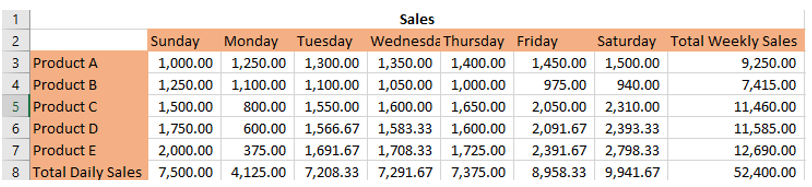
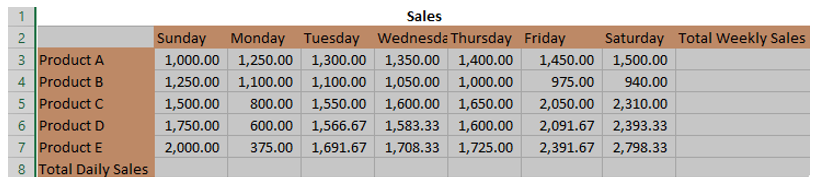
Many accountants consider it good practice to foot and cross-foot a table of values. This means totaling the values of each column (foot) and then verifying the accuracy of those totals by summing together all foots and comparing it to the sum of all rows (cross-foot). Fortunately, Excel can do this in two quick steps.

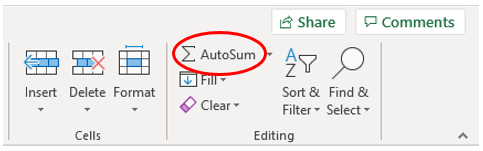
AutoSum can be used to insert sum formulas that total all columns and rows at the same time. Highlight the data, plus one additional row below and one additional column to the right of the data. On the Home tab, click the AutoSum button, or press Alt + = (equal sign).
Advertisement
ins-1
ins-2
ins-3


Play video walkthrough:


Simultaneously editing multiple worksheets in the same Excel workbook

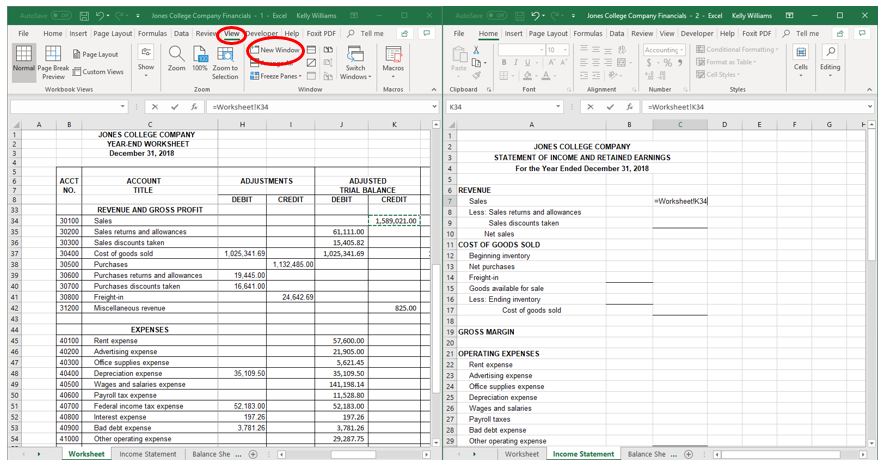
Flipping between worksheets in an Excel workbook can become tedious and time consuming, especially for tasks such as linking cells from other worksheets. It is faster to have two (or more) versions of the same workbook open. You can do this by clicking View, New Window. Now there will be two versions of the same workbook open, and you can work in different worksheets at the same time. In the illustration below, the income statement balances are being linked to the balances on the year-end worksheet without having to flip back and forth between tabs. Keep in mind, even though you are viewing and working within two or more copies of this workbook, all of your changes are saved in that one workbook.
ins-4

Play video walkthrough:


How to format faster in Excel

Excel has a Format Painter feature that makes it easy to copy the formatting of a cell and “paint” that same formatting on another cell. However, you may not be aware that you can lock that format painter to “paint” that same formatting on as many different cells as you like, as many times as you like.

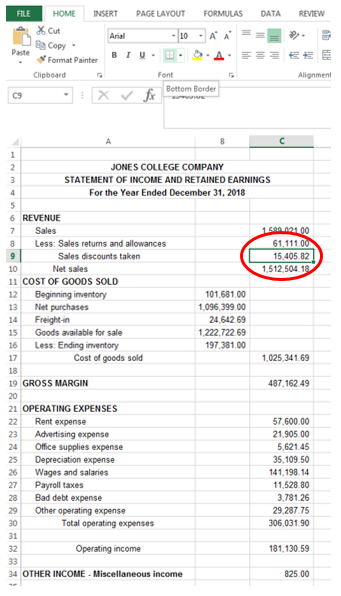
It’s easy to use. First, apply any formatting to your worksheet. In the example below, a bottom border is being added to cell C9.
ins-5


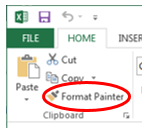
Next, double-click the Format Painter icon.
ins-6


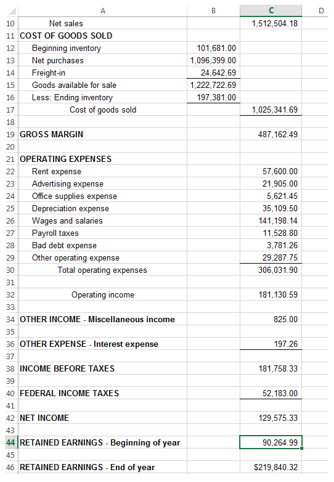
This will lock the Format Painter, and any cell you click will have that same formatting applied. This can be done to as many cells as you like. In the example below, the bottom border was “painted” to cells B14, B16, C17, C29, C36, C40, and C44 just by clicking those cells.
Advertisement
ins-7


When you are finished, press Esc (escape) and the Format Painter will unlock.

Play video walkthrough:


How to easily calculate end of month in Excel

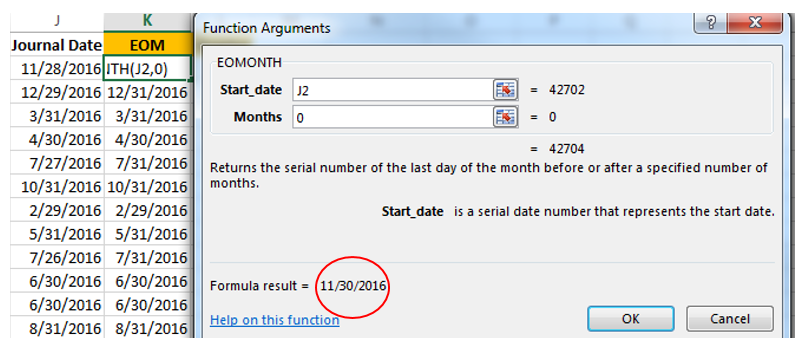
You can easily calculate the end of the month using the function EOMONTH.
ins-8


For the Start_date, either enter a date or reference the cell that contains the date (J2 in the screenshot above).

For Months, enter the number of months before or after the start date (0 in the screenshot above).

For example, if you would like to have Excel return the end of the same month as the start date, enter 0 for Months. If you would like Excel to enter the end of the next month, enter 1 for Months. If you would like Excel to enter the end of the previous month, enter -1 for Months.

Play video walkthrough:

Advertisement


—
Kelly L. Williams, CPA, Ph.D., MBA, is an assistant professor of accounting in the Jones College of Business at Middle Tennessee State University. To comment on this article or to suggest an idea for another article, contact Jeff Drew, a JofA senior editor, at Jeff.Drew@aicpa-cima.com. 

Advertisement

latest news

August 20, 2026

Proposed rules would restrict Trump account eligible investments

August 20, 2026

ASB approves standard on auditors’ responsibilities relating to fraud

August 20, 2026

IRS shifts approach to conservation easement disputes

August 20, 2026

FASB proposal addresses whether certain digital assets are cash equivalents

August 19, 2026

Pets influence Americans’ financial decisions, AICPA survey finds

Advertisement

Most Read

4 Social Security rules that surprise clients — and some advisers
A new top 5 firm: Grant Thornton acquiring fellow top 10 firm CBIZ
IRS raises standard mileage rates for remainder of 2026
4 Medicare rules that surprise clients — and some advisers
IRS updates overtime deduction FAQs, adds reporting details
Advertisement

Podcast

August 20, 2026

An innovative state society CEO and her view of accounting’s future

August 13, 2026

AI gets the headlines, but it’s not the whole story for finance leaders

August 6, 2026

Build trust with a stewardship mindset

Features

Real-life ways small firms use AI

Real-life ways small firms use AI

How to set up an effective internship program

How to set up an effective internship program

Adding externships to attract more talent

Adding externships to attract more talent

Data governance: How finance builds trust in the numbers

Data governance: How finance builds trust in the numbers

Ask the Expert: Context and AI
Accordance

Ask the Expert: Context and AI

FROM THIS MONTH'S ISSUE

Clean data faster using Excel’s REGEX functions

Excel’s REGEX functions provide a simpler, flexible solution to text-cleaning tasks, reducing the need to combine multiple functions when cleaning imported data. This JofA Technology Q&A article shows the way with step-by-step instructions and a video walkthrough.

From The Tax Adviser

July 31, 2026

Current developments in S corporations

July 31, 2026

Transfer pricing treatment of acquired intangibles

June 30, 2026

Condo casualty losses: Deductions for common-interest property

May 31, 2026

Trust distributions: Timing, tax, and practical considerations

MAGAZINE

August 2026

August 2026

August 2026
July 2026

July 2026

July 2026
June 2026

June 2026

June 2026
May 2026

May 2026

May 2026
April 2026

April 2026

April 2026
March 2026

March 2026

March 2026
February 2026

February 2026

February 2026
January 2026

January 2026

January 2026
December 2025

December 2025

December 2025
November 2025

November 2025

November 2025
October 2025

October 2025

October 2025
September 2025

September 2025

September 2025
view all

View All

http://JofA_Default_Mag_cover_small_official_blue

PUSH NOTIFICATIONS

Learn about important news

This quick guide walks you through the process of enabling and troubleshooting push notifications from the JofA on your computer or phone.

CPA LETTER DAILY EMAIL

CPA Letter Logo

Subscribe to the daily CPA Letter

Stay on top of the biggest news affecting the profession every business day. Follow this link to your marketing preferences on aicpa-cima.com to subscribe. If you don't already have an aicpa-cima.com account, create one for free and then navigate to your marketing preferences.

Connect

  • X Logo JofA on X
  • facebook JofA on Facebook

HOME

  • News
  • Monthly issues
  • Podcast
  • A&A Focus
  • PFP Digest
  • Academic Update
  • Topics
  • RSS feed rss feed
  • Site map

ABOUT

  • Contact us
  • Advertise
  • Submit an article
  • Editorial calendar
  • Privacy policy
  • Terms & conditions

SUBSCRIBE

  • Academic Update
  • CPE Express

AICPA & CIMA SITES

  • AICPA-CIMA.com
  • Global Engagement Center
  • Financial Management (FM)
  • The Tax Adviser
  • AICPA Insights
  • Global Career Hub
AICPA & CIMA

© 2026 Association of International Certified Professional Accountants. All rights reserved.

Reliable. Resourceful. Respected.