Find and fix bad workbook links
Q. I inherited an Excel report that pulls numbers from other workbooks. Some of those source files are moved or renamed from time to time. Is there a way to see where the links go and repair them without rebuilding the report?
A. Yes, Excel’s Workbook Links pane can help you identify source workbooks, refresh linked values, locate cells that contain links, change the source when a file has been moved or renamed, and remove links that are no longer needed. Microsoft now uses the term “workbook link” for what was previously called an external reference.
Workbook links are common in accounting because one reporting file may pull budget amounts, exchange rates, departmental results, or other information from separate workbooks. Workbook links can save time and reduce duplicate data entry, but they also create a control issue. If the source workbook is moved, renamed, or no longer available, the report may stop refreshing even when previously saved values remain visible. A reviewer can, therefore, be looking at numbers that appear normal without realizing that the connection to the source needs attention.
I used Microsoft Excel 365 for PCs to create the following example. Other Excel versions may work differently. You can download the Excel files used for this walk-through below and view a video demonstration at the bottom of this article.
The example includes three files: Monthly Management Report.xlsx, Budget Assumptions.xlsx, and Budget_Assumptions_2026_Revised.xlsx. Save all three files in the same folder before beginning.
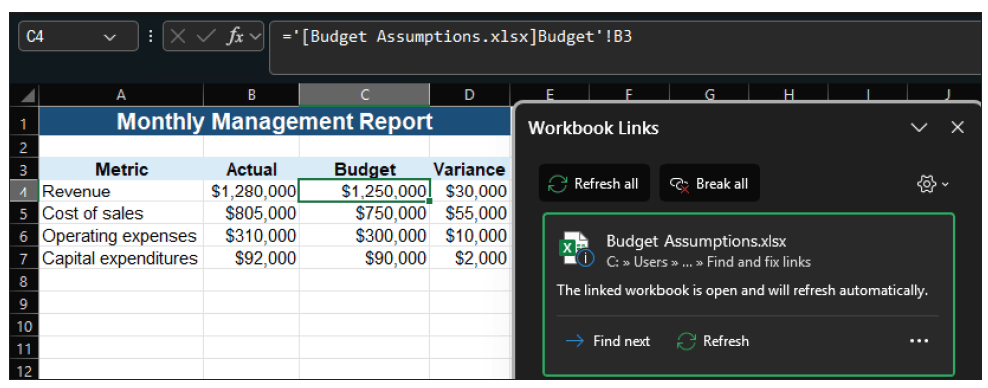
Start by opening Budget Assumptions.xlsx and Monthly Management Report.xlsx. The budget workbook contains four assumptions on the Budget worksheet: Revenue, Cost of sales, Operating expenses, and Capital expenditures. The management report contains the corresponding actual amounts, but the Budget column is intentionally blank. In Budget Assumptions.xlsx, select cells B3:B6 and press Ctrl+C. Switch to Monthly Management Report.xlsx, select cell C4, then select Home, the arrow below Paste, then Paste Special, and then Paste Link. Excel creates a workbook link for each copied cell. The formula in C4 should look similar to the following while the source workbook is open:
='[Budget Assumptions.xlsx]Budget’!B3
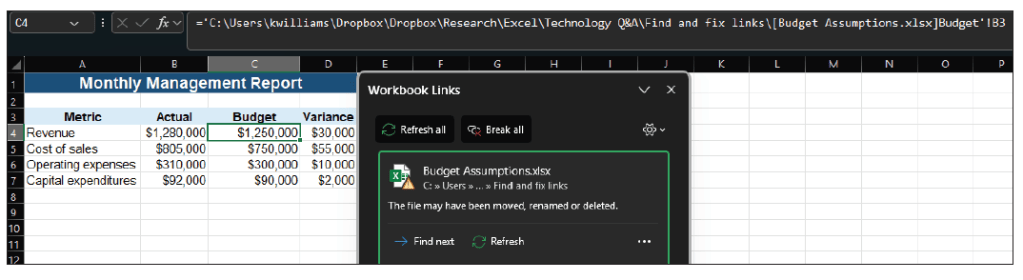
The square brackets identify the source workbook, followed by the worksheet name and cell reference. When the source workbook is closed, Excel may display the full file path in the formula. The four linked budget amounts should now populate the report, and the variance formulas in column D will calculate automatically.
Next, select Data, then in the Queries & Connections group, choose Workbook Links. The Workbook Links pane should list Budget Assumptions.xlsx as a source. Select the source and choose Find next to have Excel move to the next cell that contains a link to that workbook. You can repeat Find next to review additional linked cells. The following screenshot shows the pane after the links have been created.
The same pane also allows you to refresh a specific source or refresh all workbook links. Refreshing is important when the source workbook has changed and you want the destination workbook to retrieve the latest values. Depending on the workbook’s security and refresh settings, Excel may display a warning before updating links when the file is opened. If links are not enabled or refreshed, Excel can retain the most recently saved values instead of pulling new values from the source.
To see what happens when a source is no longer where Excel expects it, close both workbooks. Rename Budget Assumptions.xlsx or move it to another folder. Then reopen Monthly Management Report.xlsx and open the Workbook Links pane again. Excel can no longer locate the original source, so the link needs to be repaired. The following screenshot shows the broken source in the Workbook Links pane.
This situation is easy to encounter during year-end rollforwards. For example, a reporting workbook may still point to Budget 2025.xlsx after the organization has created Budget 2026.xlsx. Rebuilding every linked formula is unnecessary. Instead, use Excel’s Change source command to redirect all references to the replacement workbook.
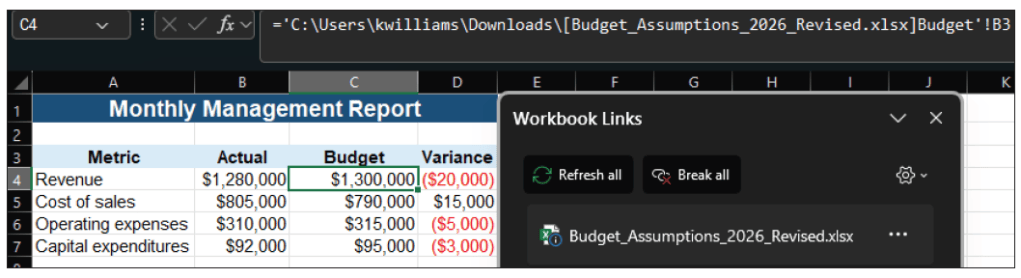
To do this, in the Workbook Links pane, select the More Commands button, represented by three dots next to the broken source, and then select Change source. Browse to Budget_Assumptions_2026_Revised.xlsx and select it. Excel updates the workbook links so the existing formulas now point to the revised source. The revised source contains budgeted revenue of $1,300,000, cost of sales of $790,000, operating expenses of $315,000, and capital expenditures of $95,000. After the source is changed and the links are refreshed, those amounts should appear in the Budget column of the management report. The following screenshot shows the report using the revised source.
Workbook Links can also help when you inherit a file and do not know if external links exist in the workbook. Microsoft notes that there is no single automatic method that finds every possible workbook link because links may appear in formulas, defined names, objects, chart titles, and chart series. To search formulas, press Ctrl+F, select Options, enter .xl in the “Find what” box, set “Within” to Workbook, set “Look in” to Formulas, and select Find All. This search is especially useful when a workbook contains links to several Excel files.
If you determine that a workbook link is no longer needed, the Workbook Links pane also includes Break all and, under More Commands, Break links. Use these commands carefully. When a link is broken, Excel converts formulas that use the source workbook into their current values. The numbers remain, but the connection and formulas are removed. In the Windows desktop version, Microsoft warns that breaking a workbook link cannot be undone, so saving a backup copy first is a good practice.
For accountants, the larger lesson is not simply how to repair a broken Excel formula. Workbook links are part of a financial report’s data lineage. A reviewer should know which files supply key amounts, whether those sources are still available, and whether the linked values have been refreshed. The Workbook Links pane provides a practical place to perform that review before relying on or distributing a report.
About the author
Kelly L. Williams, CPA, Ph.D., MBA, is an associate professor of accounting at the Jones College of Business at Middle Tennessee State University.
Submit a question
Do you have technology questions for this column? Or, after reading an answer, do you have a better solution? Send them to jofatech@aicpa.org.