Using Excel’s REGEX functions to clean accounting data faster
Excel for Microsoft 365 includes REGEX functions that can dramatically simplify many common accounting data-cleaning tasks.
Q. I frequently import messy accounting data into Excel from ERP systems, bankfeeds, and purchasing systems. Is there a faster way to clean and standardize text–based accounting data without relying onlong combinations of LEFT, MID, RIGHT, FIND, and SUBSTITUTE formulas?
A. The answer is yes. Excel for Microsoft 365 (PC and Mac versions) includes REGEX functions that can dramatically simplify many common accounting data-cleaning tasks. Short for “regular expressions,” REGEX allows users to search for patterns inside text strings. While REGEX has existed for years in programming languages and database tools, it is now available directly within Excel through functions such as REGEXEXTRACT, REGEXREPLACE, and REGEXTEST.
Accounting professionals routinely work with exported data from enterprise resource planning (ERP) systems, bank feeds, purchasing systems, payroll software, and customer databases. Unfortunately, these exports are often inconsistent and difficult to clean. Vendor names may appear in multiple formats, invoice numbers may be embedded within long transaction descriptions, and journal entry references may not follow established naming conventions.
Traditionally, accountants have relied on combinations of functions such as LEFT, MID, RIGHT, FIND, SEARCH, and SUBSTITUTE to clean imported data. While these functions remain valuable, Excel’s newer REGEX functions provide a faster and more flexible approach for handling many text-cleaning tasks.
REGEX functions search for patterns within text strings rather than relying on fixed character positions. Fortunately, accountants do not need to become programmers to benefit from REGEX. Even learning a few simple patterns can automate many repetitive cleanup processes.
Some common REGEX characters to note are as follows:
- [0-9] = Any number from 0–9
- + = One or more occurrences
- ^ = Beginning of the text
- \s = A space character
- {5} = Exactly five characters
Excel has three REGEX functions: REGEXEXTRACT, REGEXREPLACE, and REGEXTEST. Let’s review the first one.
If you would like to follow along in using these functions, you can download this Excel workbook and view an accompanying video at the end of this article.
The syntax for the REGEXEXTRACT function is =REGEXEXTRACT(text, pattern, [return_mode], [case_sensitivity]).
- Text, which is required, is the text or cell reference from which you want to extract text strings.
- Pattern, which is required, describes the pattern of text to extract.
- Return_mode, which is optional, specifies what text strings to extract. By default, it is set to 0.
- 0 returns the first string that matches the pattern.
- 1 returns all strings as an array that matches the pattern.
- 2 returns capturing groups as an array from the first match.
- Case_sensitivity, which is optional, specifies if the match is case-sensitive. By default, it is set to 0.
- 0 is case–sensitive.
- 1 is case–insensitive.
We will use REGEXEXTRACT in our example. One common challenge involves extracting invoice numbers embedded within transaction descriptions. Suppose imported bank activity contains the descriptions in the following screenshot:
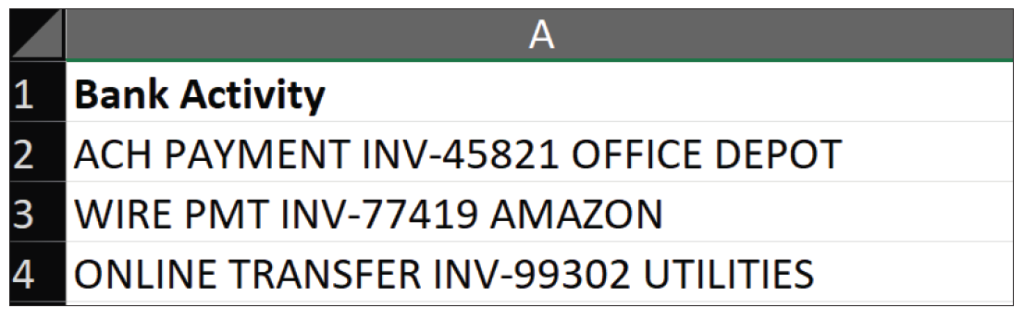
To extract only the invoice number, enter the following formula in cell B2: =REGEXEXTRACT(A2:A4,“INV-[0-9]+“). This formula searches for the letters “INV-” followed by one or more numbers. The extracted results are shown in the following screenshot:
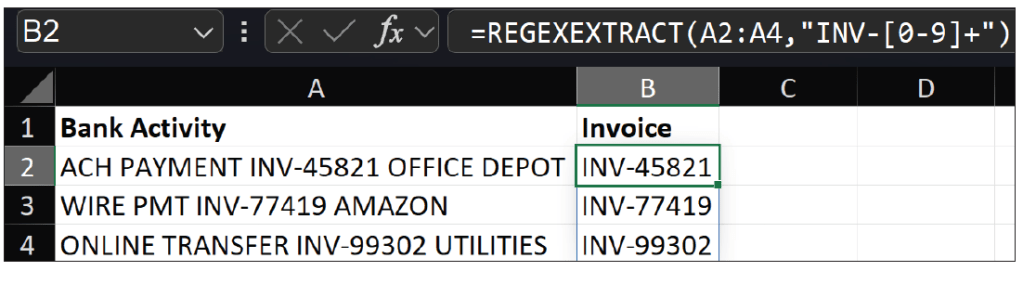
Without REGEX, this process often requires complicated combinations of MID, FIND, and LEN functions. REGEXEXTRACT simplifies things substantially and automatically adjusts to invoice numbers containing different numbers of digits.
REGEX functions are also useful when imported general ledger data has account numbers and descriptions combined into a single field. Consider the example in the following screenshot:
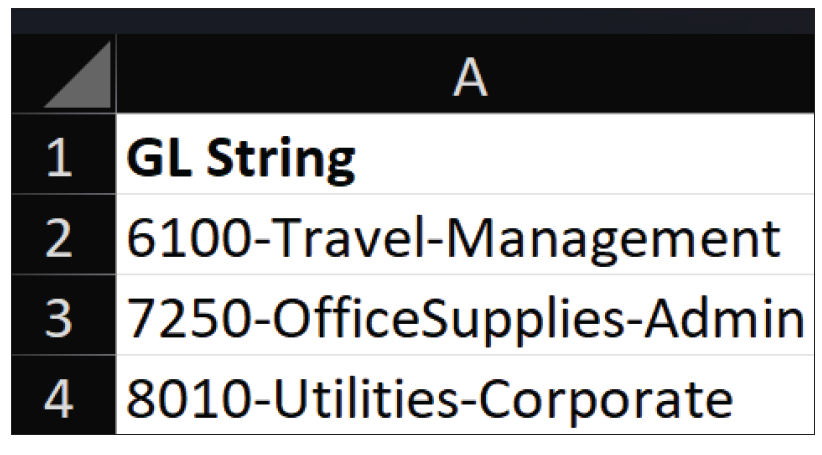
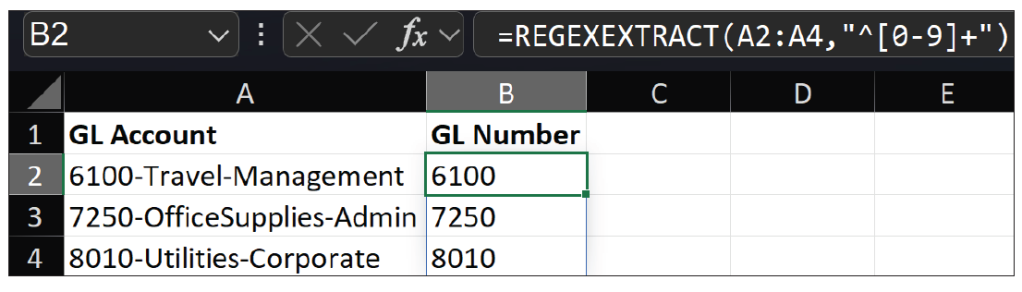
To extract only the account number, enter the following formula in cell B2: =REGEXEXTRACT(A2:A4,“^[0-9]+“). The ^ symbol instructs Excel to begin searching at the start of the text string. This approach can simplify account mapping, financial statement grouping, and data preparation for dashboards or PivotTables. The extracted results are shown in the screenshot below:
The next function is REGEXREPLACE. The syntax for the REGEXREPLACE function is =REGEXREPLACE (text, pattern, replacement, [occurrence], [case_sensitivity]).
- Text, which is required, is the text or cell reference from which you want to replace text strings.
- Pattern, which is required, describes the pattern of text to replace.
- Replacement, which is required, is the text you want to replace the pattern.
- Occurrence, which is optional, specifies what pattern to replace. By default, it is set to 0, which replaces all instances of patterns. A negative number replaces the occurrence of a pattern, starting from the end.
- Case_sensitivity, which is optional, specifies if the match is case-sensitive. By default, it is set to 0.
- 0 is case–sensitive.
- 1 is case–insensitive.
We will use REGEXREPLACE in our next example. Another frequent accounting challenge involves inconsistent vendor names. Imported transaction data may contain variations such as the ones shown in the screenshot below:
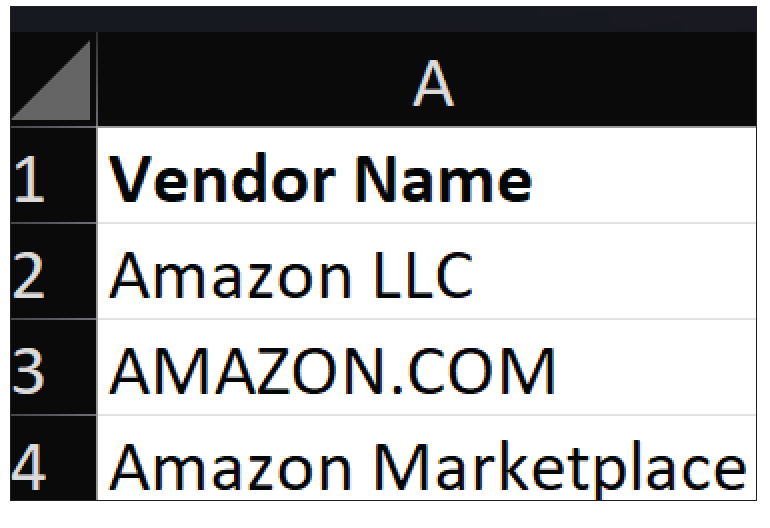
Even though these represent the same vendor, they may not group properly in PivotTables or spend analyses. The following REGEXREPLACE formula standardizes these variations: =REGEXREPLACE(A2:A4,“(?i)amazon.*“,“Amazon“). The (?i) portion ignores capitalization, while .* captures all remaining characters after the word “amazon.” See the results in the following screenshot:
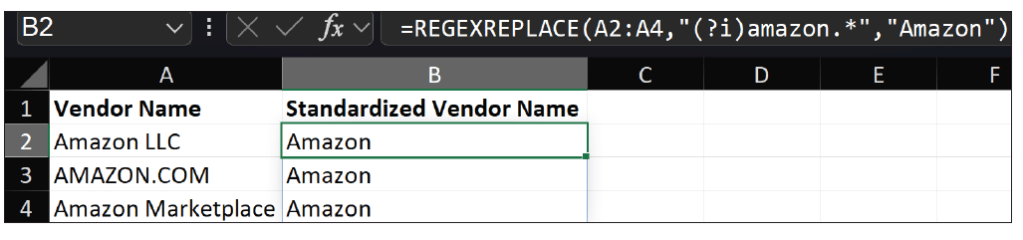
The result is a consistent vendor name that improves reporting accuracy and reduces manual cleanup work.
The remaining REGEX function is REGEXTEST. The syntax for the REGEXTEST function is =REGEXTEST (text, pattern, [case_sensitivity]).
- Text, which is required, is the text or cell reference you want to match against.
- Pattern, which is required, describes the pattern of text to match.
- Case_sensitivity, which is optional, specifies if the match is case-sensitive. By default, it is set to 0.
- 0 is case–sensitive.
- 1 is case–insensitive.
REGEX functions can also help accounting departments identify improperly formatted journal entries. Suppose journal entries are required to follow the naming convention: JE-2026-12345. However, imported entries may appear as in the following screenshot:
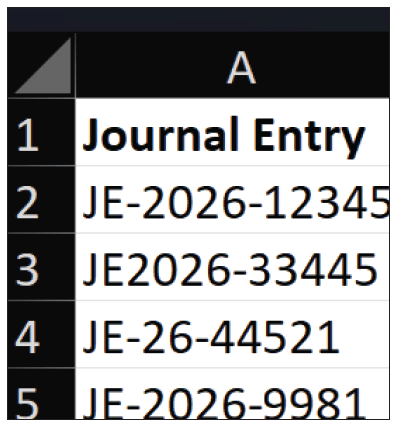
To validate whether each entry follows the required structure, enter: =REGEXTEST(A2:A5,“JE-2026-[0-9]{5}“) into cell B2. The following screenshot shows the results:
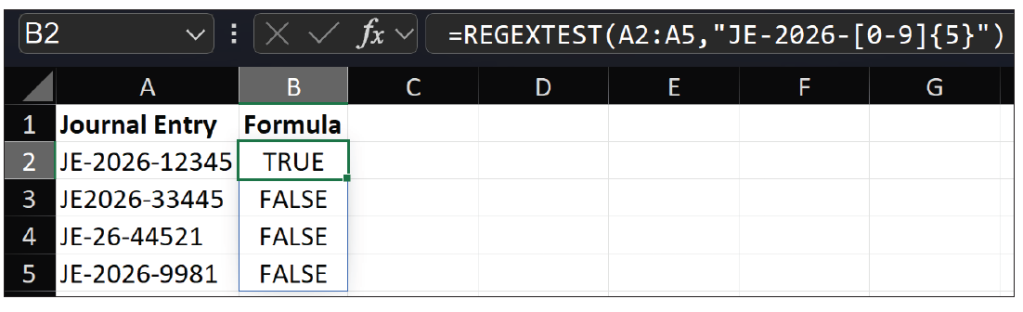
This formula returns TRUE if the journal entry follows the correct naming convention and FALSE if it does not. Accounting departments can use this technique during the close process or audit preparation to quickly identify exceptions.
Bank and credit card exports frequently contain inconsistent spacing that interferes with lookups, summaries, and duplicate detection. Review the following screenshot for our last dataset:
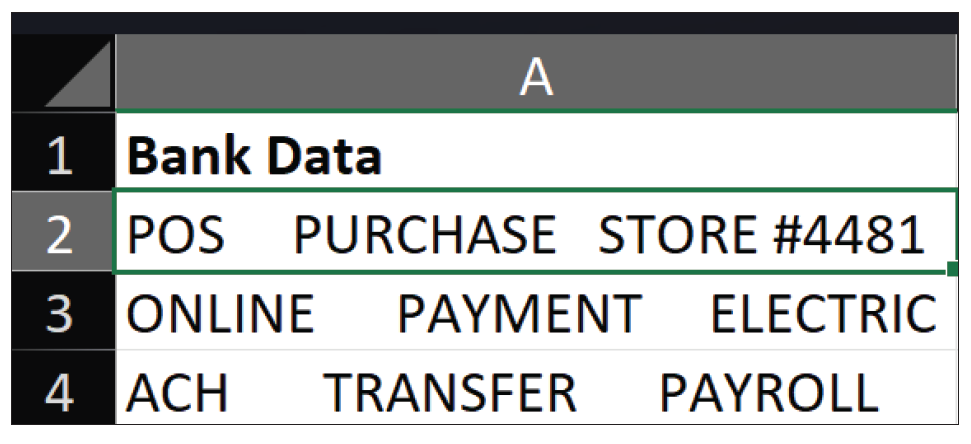
To replace multiple spaces with single spaces, enter the following formula in cell B2: =REGEXREPLACE(A2:A4,“\s+“,“ “). This formula searches for repeated spaces and replaces them with a single space, improving data quality for downstream analysis. The following screenshot shows the formula’s results:
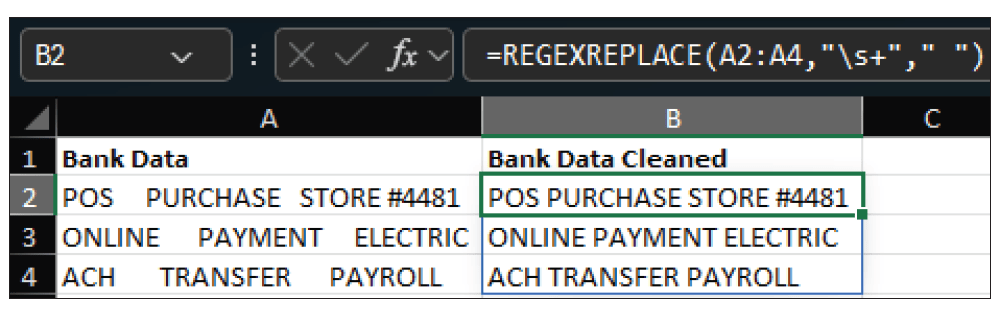
Many accountants already use traditional text functions effectively, and those functions remain valuable. However, REGEX functions can often substantially reduce formula complexity. AI chatbots also can be helpful for writing REGEX expressions. You have to test them, but using AI can be much easier than trying on your own to work out an expression with all the special characters and rules.
Cleaning imported accounting data is frequently one of the most time-consuming parts of financial analysis and reporting. Excel’s REGEX functions provide accountants with a powerful new method for extracting, validating, and standardizing text-based data. By learning just a few basic patterns, accounting professionals can automate repetitive cleanup tasks, simplify formulas, improve consistency, and reduce manual data preparation work.
About the author
Kelly L. Williams, CPA, Ph.D., MBA, is an associate professor of accounting at the Jones College of Business at Middle Tennessee State University.
Submit a question
Do you have technology questions for this column? Or, after reading an answer, do you have a better solution? Send them to jofatech@aicpa.org.