Excel’s Dark Mode: A subtle change that makes a big difference
Q. Could you tell me about Microsoft Excel’s Dark Mode?
A. Great question. I have spent many hours working with Excel, and that bright white screen can feel harsh on the eyes after a while. Microsoft addressed the issue by adding Dark Mode. It may seem like a small tweak, but it’s one of those changes you notice immediately and don’t want to live without.
I used Microsoft Excel 365 for PCs to switch to Dark Mode, so other versions may work differently. A video demonstration of switching to Dark Mode is available at the end of this item, and you can download the Excel file I used.
Dark Mode doesn’t change how Excel works. Your formulas, charts, and PivotTables stay the same. The main change is the interface’s appearance. The ribbon, menus, and background are switched to darker tones, such as soft gray or deep black, while the text becomes lighter. The grid typically remains white, making it easier to read numbers and charts. For anyone who has spent extended periods under fluorescent lights or looking at a bright screen, this adjustment is a welcome improvement.
For many people, it’s all about comfort. Dark Mode is definitely easier on the eyes, especially when you’re working late into the night, but can we stop using monitors? Of course not. There’s also a bit of a mental boost; with fewer bright, colorful distractions on screen, it’s easier to focus on the data that really matters. And let’s be honest, it just makes Excel look more modern. It’s a nice upgrade that brings it into the 21st century.
Turning on Dark Mode isn’t complicated. Go to File, then Options, and under the General tab, you’ll see a section called Personalize your copy of Microsoft Office. From there, choose Dark Gray or Black under Office Theme. You can even let Excel follow your system settings if you prefer consistency across applications. With one click, the bright interface fades into something softer. See the following screenshot.
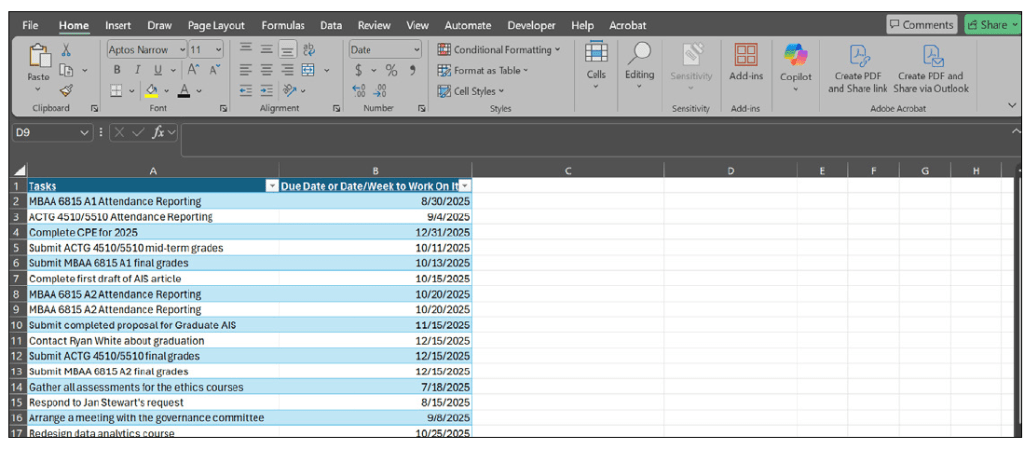
Dark Mode has its drawbacks. For example, the worksheet grid usually remains white. You can choose Black under Office Theme, which activates a Dark Mode toggle in the View tab of your Excel ribbon. With the toggle, you can move between a white worksheet grid or a black worksheet grid. See the following screenshot.
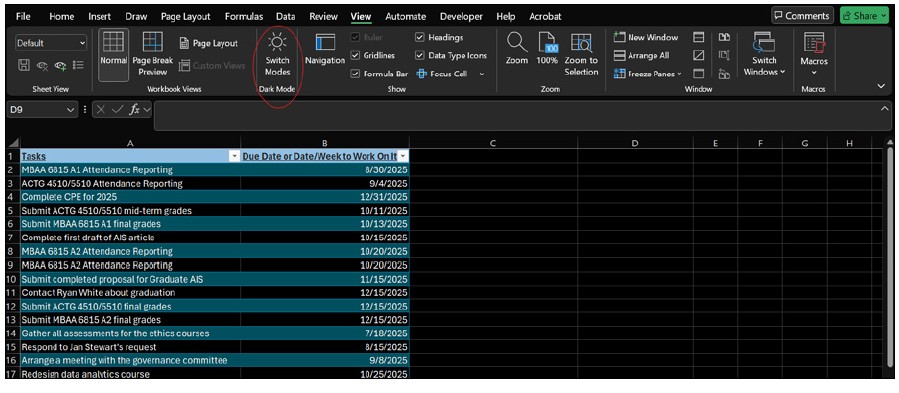
Subtler darkening, though, requires extra formatting and removes the toggle option.
Additionally, shared files do not keep your theme settings, meaning your colleague might still open the same document with a bright white background. Despite these issues, the benefits of a calmer, less stressful screen make it worthwhile. While I was writing this column, I switched back to the all-white theme, and it was a bit startling.
At first glance, Dark Mode might look like just another cosmetic feature. In practice, it feels like a small but thoughtful concession to the reality of modern work. We spend hours in front of spreadsheets. Anything that makes that time less tiring is worth embracing. Dark Mode may not change how Excel works, but it just might change how you feel about using it.
About the author
Kelly L. Williams, CPA, Ph.D., MBA, is an associate professor of accounting at the Jones College of Business at Middle Tennessee State University.
Submit a question
Do you have technology questions for this column? Or, after reading an answer, do you have a better solution? Send them to jofatech@aicpa.org.