Optimize Windows 11 with these 8 settings tweaks
Q. I use Windows 11 every day. What are some settings that can make my Windows experience better?
A. Windows 11 is the most common PC operating system worldwide, with 62% of the Windows desktop market share as of January 2026, according to StatCounter. I wrote about four Windows 11 features in the October 2024 JofA (HTML version | digital edition). I want to now show Windows 11 settings that I, or people I know, have found useful for improving the Windows experience.
Find Settings
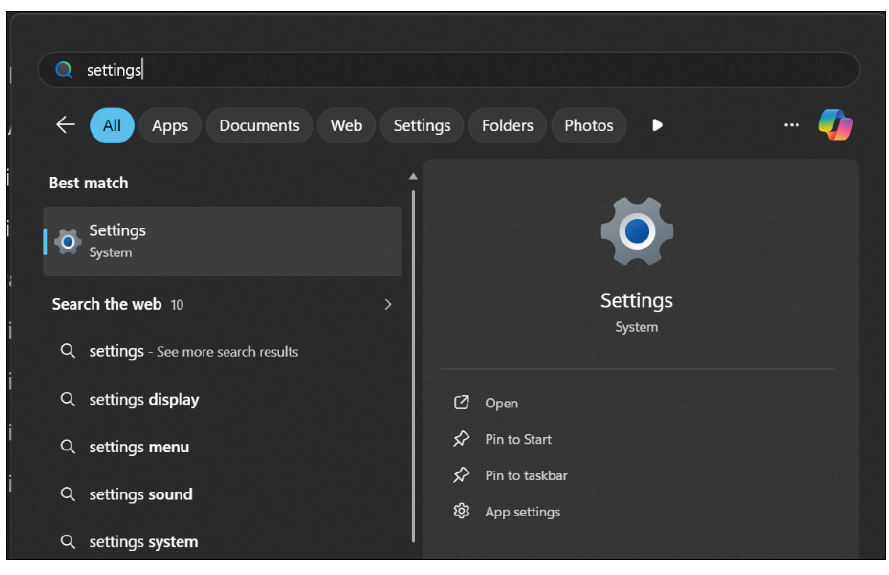
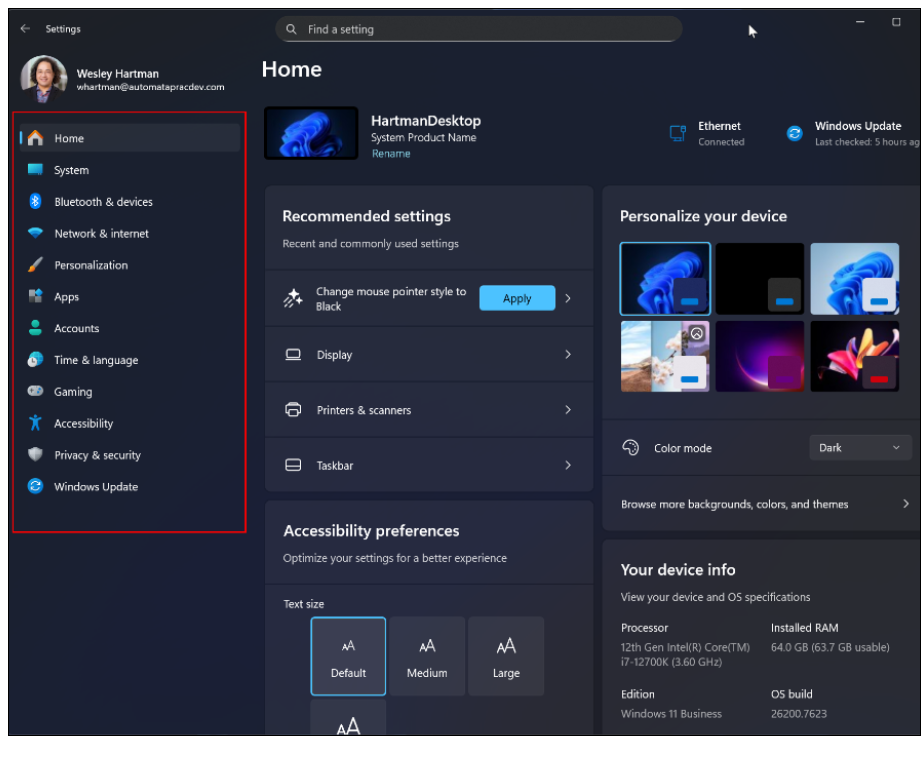
An easy way to get to Settings is to click on the Start menu and type Settings. You can click on the icon to open your Settings window, which brings you to the Settings Home screen. I will focus on the left-side menu and drill into specific Settings I want to talk about.
Title bar shake
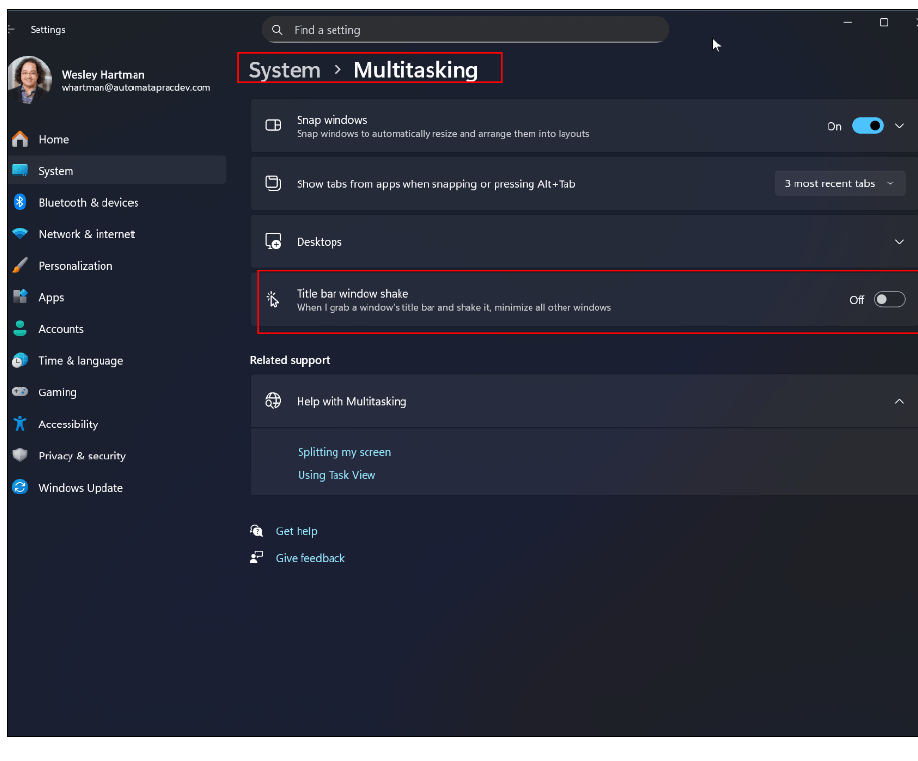
When I click and drag a window, I will jiggle the mouse without thinking. This triggers title bar shake. Title bar shake minimizes all open windows. I do not like this feature. When I am working, I have my windows open and arranged in a specific way, and an accidental title bar shake means I have to reopen all my working windows. To turn this feature off, go to Settings, select System on the left-side menu, then click on Multitasking from the list of System options. You can then turn off Title bar window shake, as shown in the following screenshot.
End Task from Task Bar
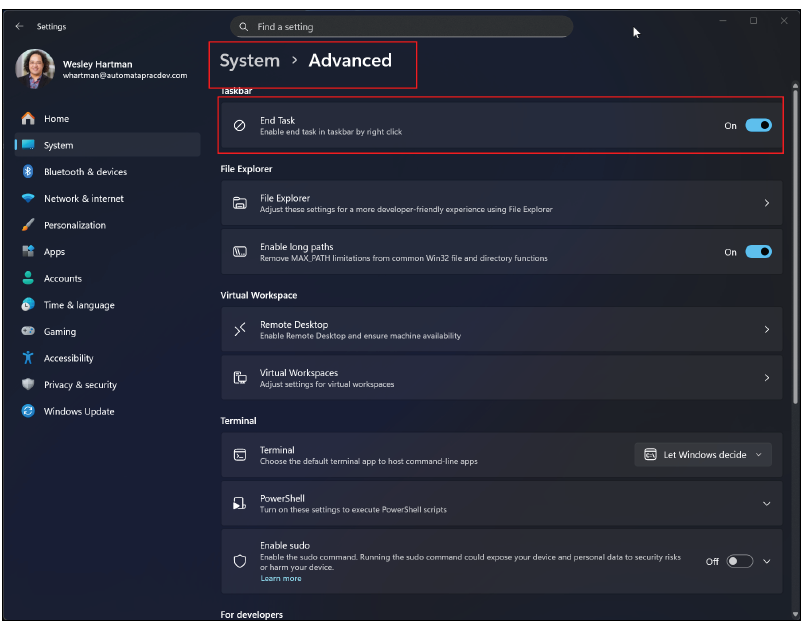
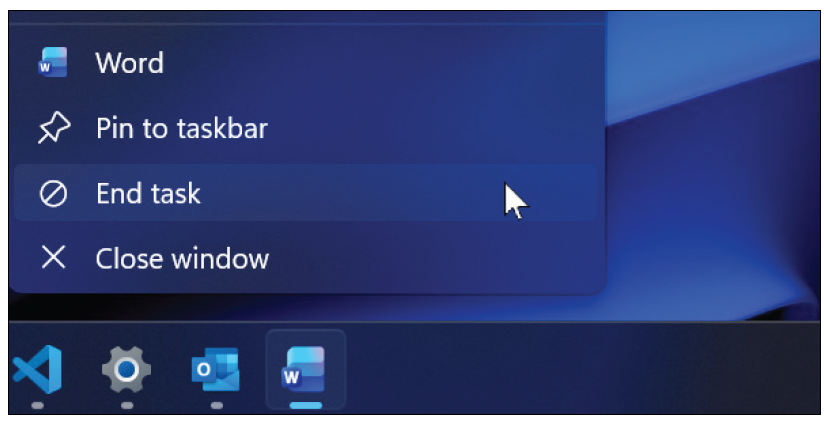
In the past when a program locked up in Windows, I would press Ctrl + Alt + Delete to get to the Task Manager. I then had to look through the long list of open applications for the problematic application. Windows enables adding “End Task” as an option when you right-click on an application’s icon in the taskbar. This setting can be found in System > Advanced > End Task.
Customize the Start menu
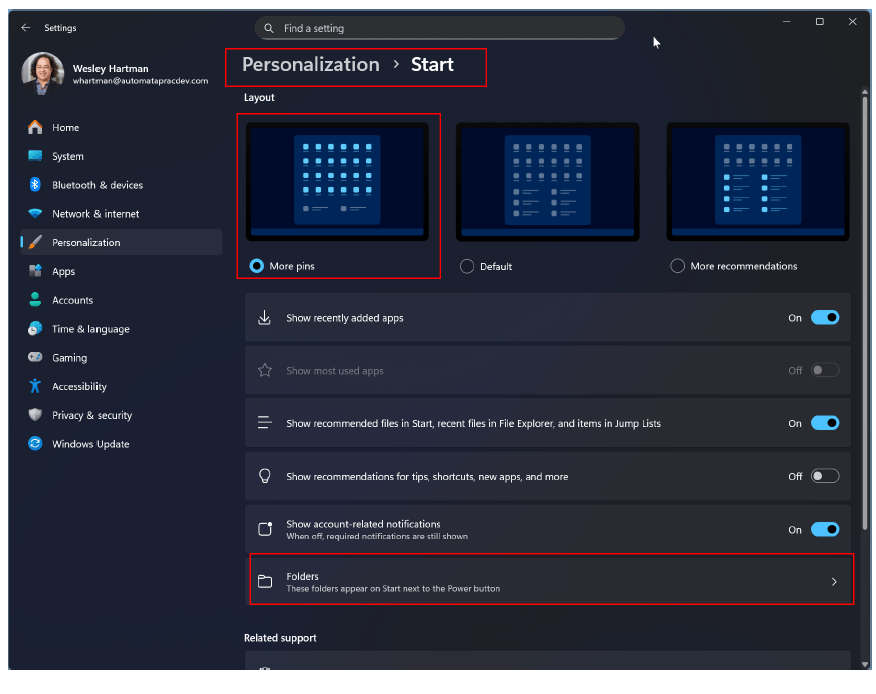
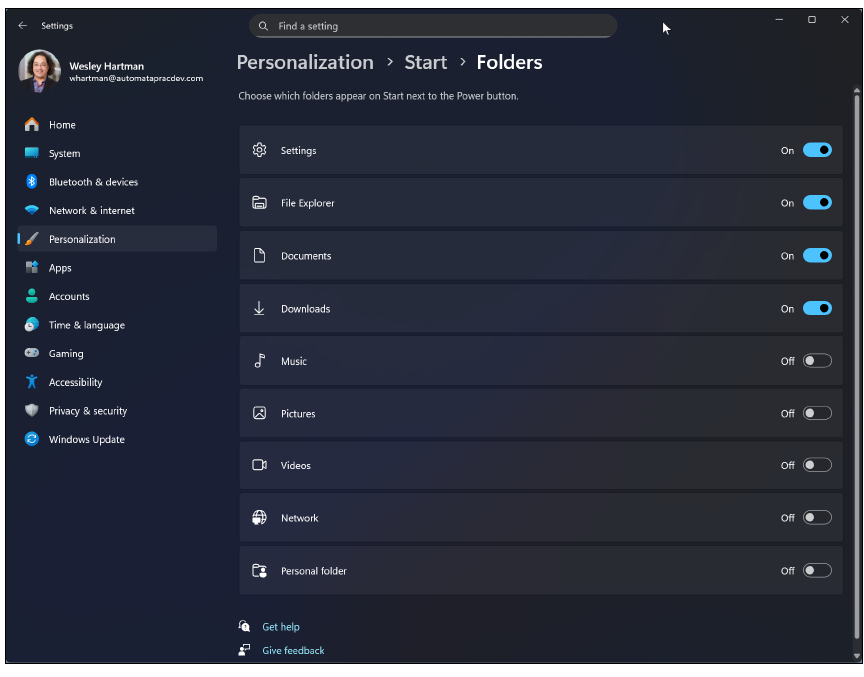
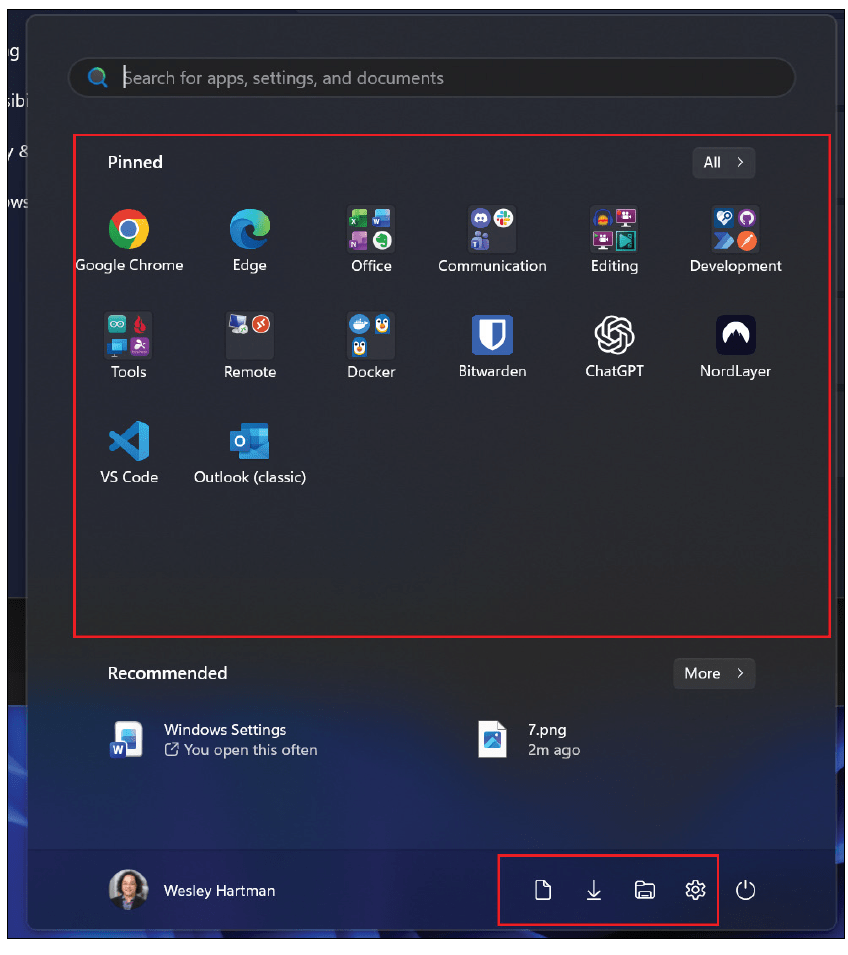
I want to show two specific settings: more pinned apps and folder icons. To get to the Start menu settings, go to Personalization > Start. I like to have more applications than files in my Start menu. To add more applications, I change the layout to “More pins.” I also want icons for common folders I frequently access. On the same Start screen, click Folders. I turn on Settings, File Explorer, Documents, and Downloads.
Taskbar adjustment
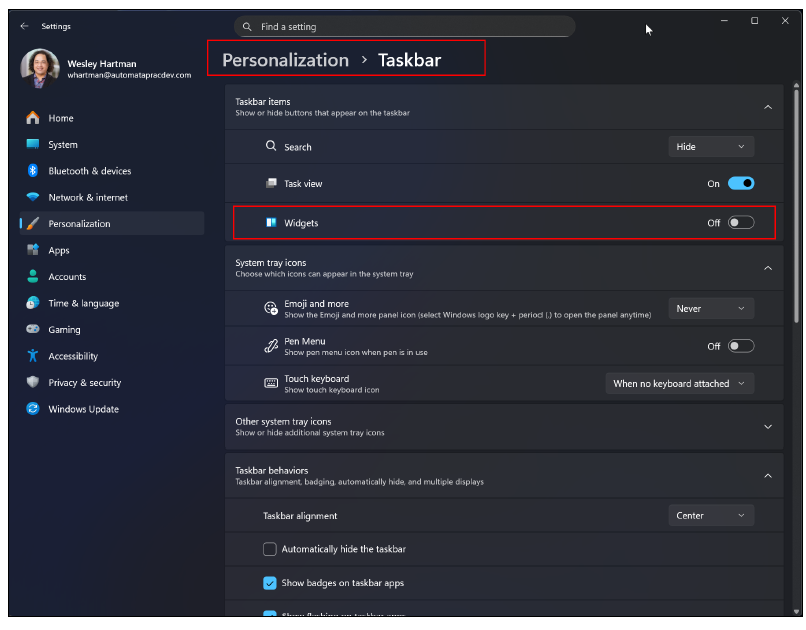
I make only one specific adjustment to the Taskbar: disabling Widgets. Widgets is the menu that appears in the bottom left corner of my screen with weather information. But hovering over the icon opens a menu of other information and news that takes up a third of the screen. I find this to be disruptive, so I turn off Widgets. Find this setting under Personalization > Taskbar in the Taskbar items group.
Clean up automatic Startup launches
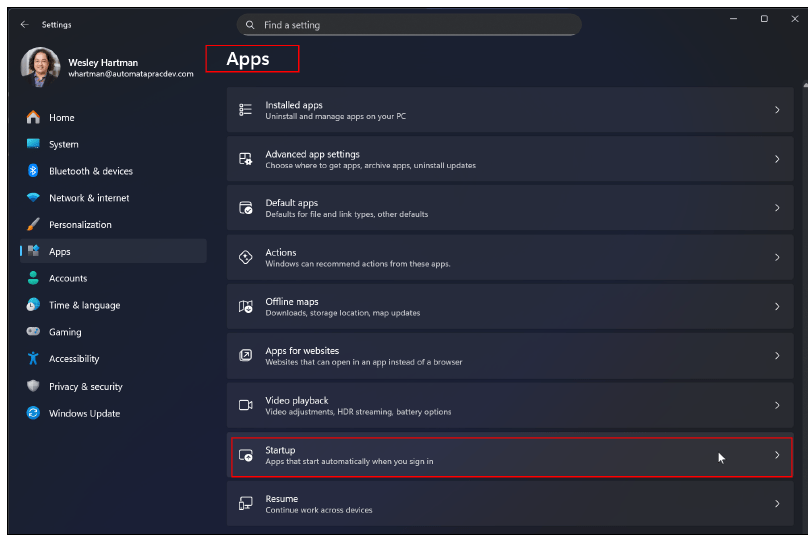
I sometimes accumulate applications that automatically launch when I start my computer. Leaving all these apps to launch on startup causes my computer to start slower. I try to remember to disable any unwanted apps once a year. Find the automatic-startup apps list by going to Apps > Startup.
Accessibility for ease of use
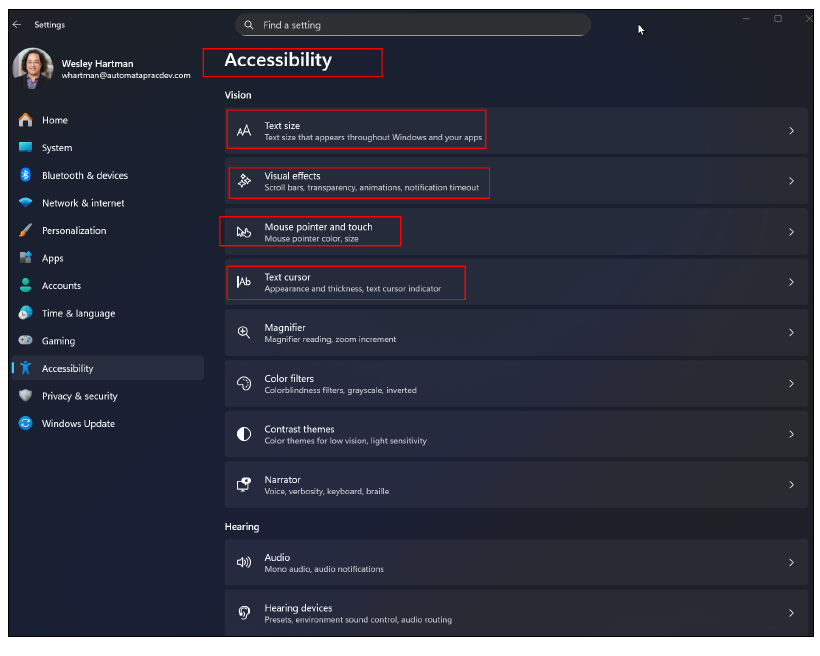
There are a host of Accessibility settings. I want to focus on just a few.
A common way to make everything larger on a screen is to increase the screen scaling by a percentage. A different option is to change the Text size setting. This can be found in Accessibility > Text size. A slider can make text and certain icons larger.
Some menus with scrollbars will show just a thin vertical line. In previous Windows versions, the scroll bar would show a dedicated slider. To bring back the old scrollbar, go to Accessibility > Visual effects and turn on Always show scrollbar.
Several useful adjustments are found under Accessibility > Mouse pointer and touch. The pointer size can be customized. It defaults to the smallest size, but I like to have it a little above that, approximately 10% of the slider. Additionally, I turn on a setting called Mouse indicator. It will show a circle around the pointer when I press the Ctrl key. So if I lose track of my cursor, I don’t need to shake my mouse to find the pointer. Just a note, Mouse indicator does not work if the pointer is moving.
Under Accessibility > Text Cursor, the cursor can be customized with an indicator. The Text Cursor indicator highlights my cursor with colored triangles above and below my cursor line when I type in documents. I keep the size at the smallest setting and set the color to orange.
Privacy
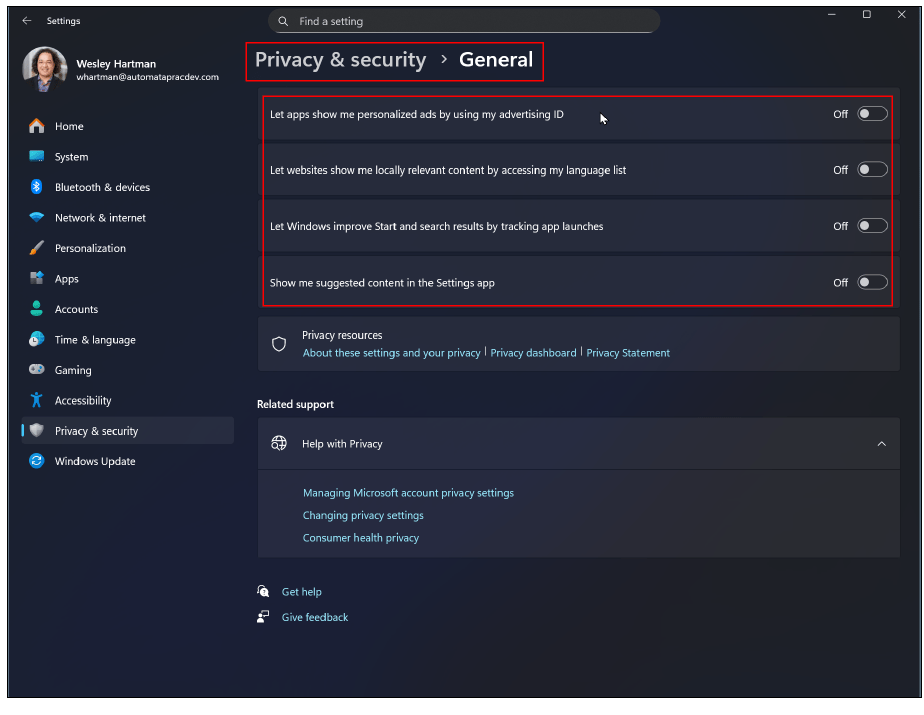
Windows will show you ads based on tracking, and I want to disable this. Find these settings in Privacy & security > General. I set everything to Off.
Updates for my network
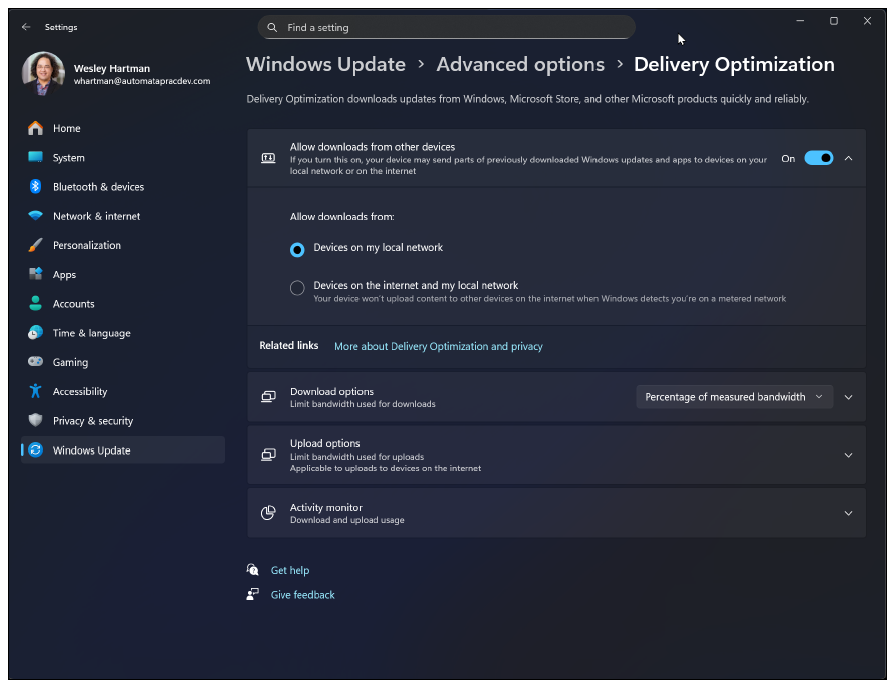
I have multiple computers on my network. A Windows Update setting allows these computers to communicate and share Windows updates. This makes updating the devices use less bandwidth on my internet connection. However, a setting allows the computer to send updates to other computers on the internet. I don’t like the idea of my computer sending data to other computers outside of my network, even though Microsoft states that it is safe. To confirm this setting is set correctly, go to Windows Update > Advanced Options > Delivery Optimization. I leave it on, but I set it to Devices on my local network.
These small but significant setting adjustments make my computer easier to use throughout the day.
About the author
Wesley Hartman is the founder of Automata Practice Development.
Submit a question
Do you have technology questions for this column? Or, after reading an answer, do you have a better solution? Send them to jofatech@aicpa.org.