How multiple people can share screens simultaneously
Q. When I am working with screen sharing on most apps, the experience is lackluster for my team and me. What sort of tools are out there that can create a more productive screen-sharing session?
A. Screen sharing has become an important tool in communication and effective training for our remote team members. To assist in this, we use a tool called CoScreen. CoScreen allows multiple participants to share and interact with one another’s screens or windows simultaneously. (Each participant must have an independent window open for each participant who is sharing, e.g., if there are six people in a meeting and three are sharing their screens, then all six participants will have three windows opened for each person sharing.)
With CoScreen, I can share a tax software app with a new hire while they share their tax software. I can see their screen, and they can see mine. They can share control, but I can restrict control of mine. This lets me efficiently walk them through procedures without juggling screen sharing back and forth.
Let’s go through a walk-through I created to show how CoScreen works. For the purposes of this walk-through, I controlled both participants myself.
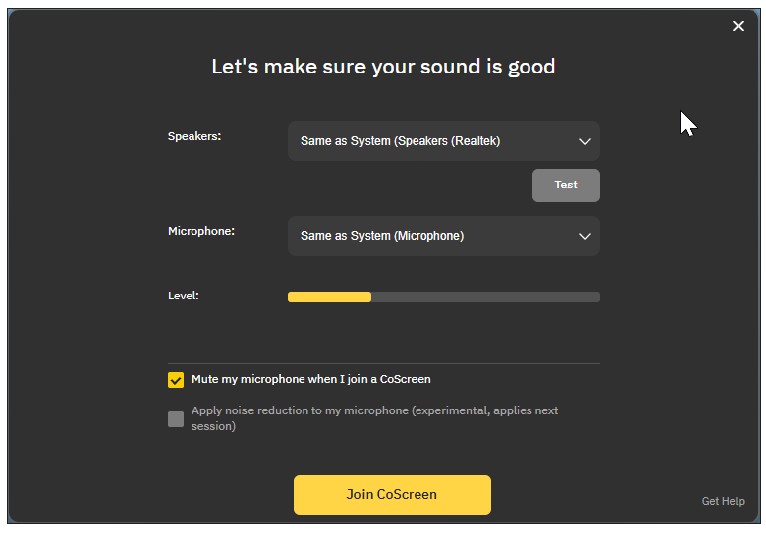
Before starting, I downloaded the CoScreen app. I was then brought to the sign-up page where I used my email to create a password and activated my account. Once my account was active, I started my first CoScreen session. I left the default settings on and muted the microphone. (I will continue to use Teams as my preferred communication app instead of CoScreens. Though CoScreen video and audio are passable, I want to keep regular communications through the Microsoft suite.) I then clicked Join CoScreen.
For the walk-through, I needed another participant, so I created a second CoScreen account using a personal email. I clicked on the “Invite Participant” icon highlighted in red in the first of the following two screenshots, entered the personal email address, and selected “Send Invite,” shown in the second screenshot. If you are inviting a team member, a quick alternative option is to copy the link and send it via Teams.

Once the other person has joined, both participants will show in the session. The following screenshot shows the two participants for this demonstration. The top participant, with the initials “WH” in the dark screen, is from my desktop. We will refer to this as Participant 1 (P1). The bottom participant, displaying a picture of two dogs, is from my laptop. This will be Participant 2 (P2).
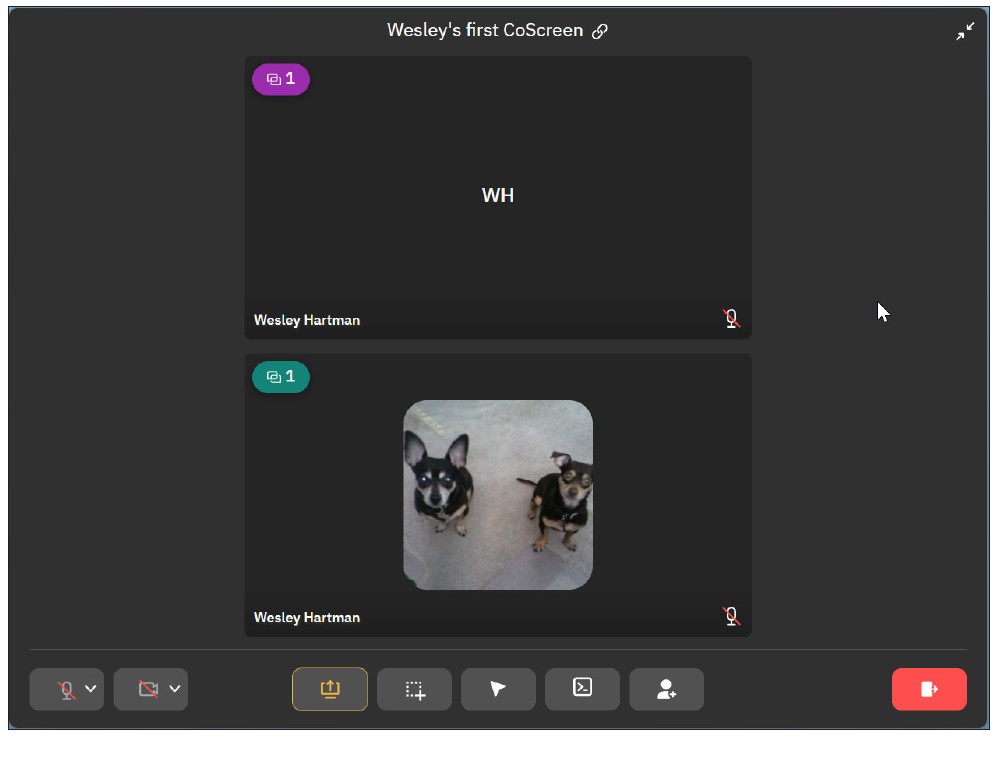
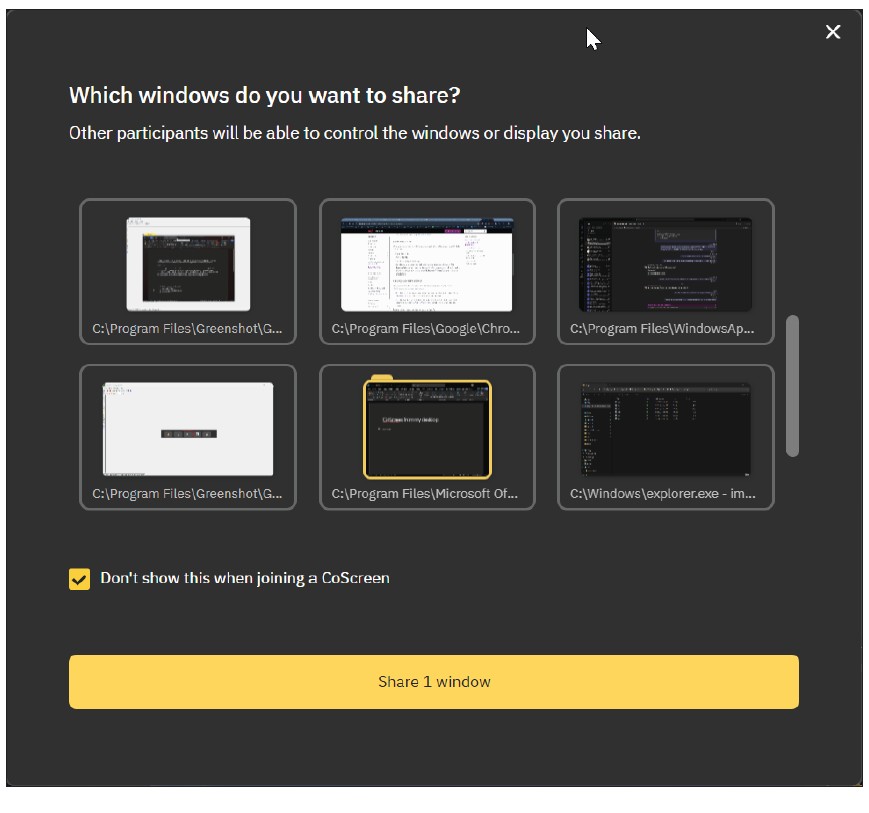
CoScreen provides two ways to share a screen. The first is to use the screenshare, the yellow icon to the left on the bottom toolbar in the previous screenshot. This will bring up the list of screens and open windows. If I want to share a screen, I select the desired screen and click the Share the entire display button. If I want to share a specific window, I select the window and click Share 1 window, as shown in the next screenshot.
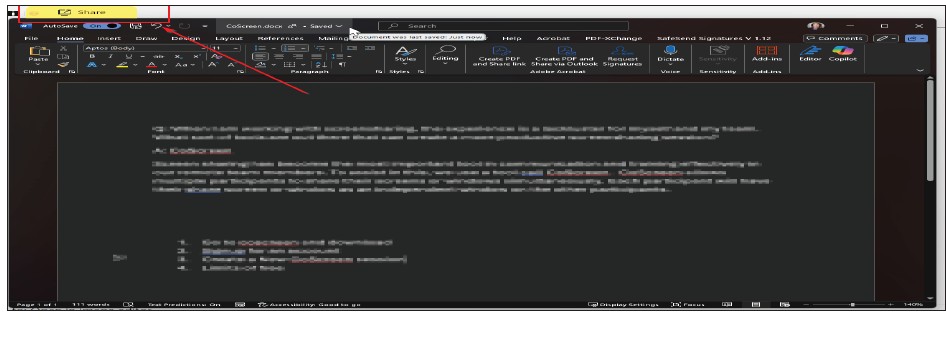
You can also share a window using the yellow tab that appears at the top of a window.
In the demonstration, I shared a window from both P1 and P2 to show them simultaneously.
The following screenshot is from my desktop. The yellow window is shared by P1. The green window is shared by P2. Each window being shared has three controls in the top-left corner. From left to right, these are:
- “View,” used for seeing the other participant’s screen but not interacting with it.
- “Control,” used take control and work in a shared screen. This allows me to click in the window and type.
- “Draw,” useful for training and guiding. The pen color is different for each participant, and any drawing fades after 10 seconds.
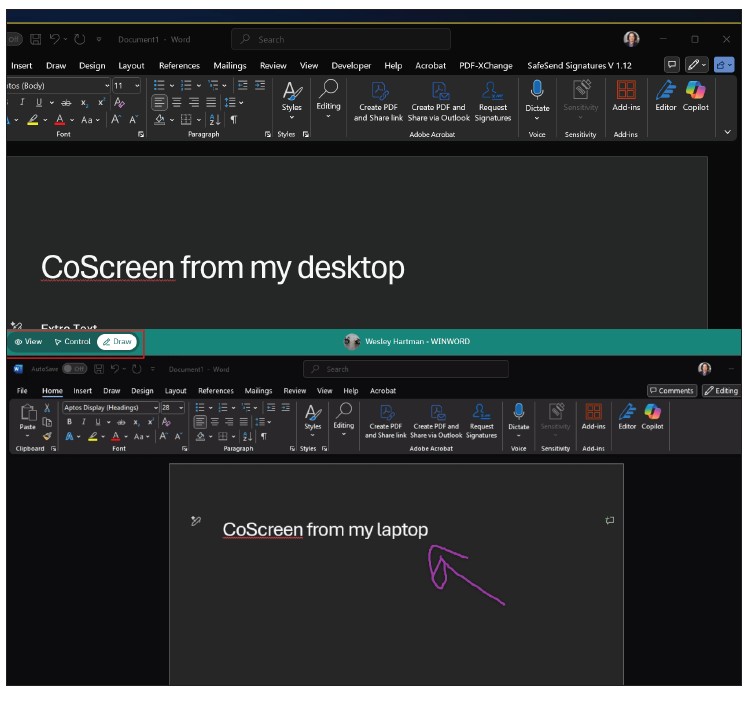
If I don’t want someone to take control of my screen, I need to click the button to Prevent others from taking control. To demonstrate this, I selected this button for P1, highlighted in red in the screenshot below.

That disabled the “Control” option for P2. You can see the grayed-out “Control” function in P2’s green, top-left control bar in the next screenshot.

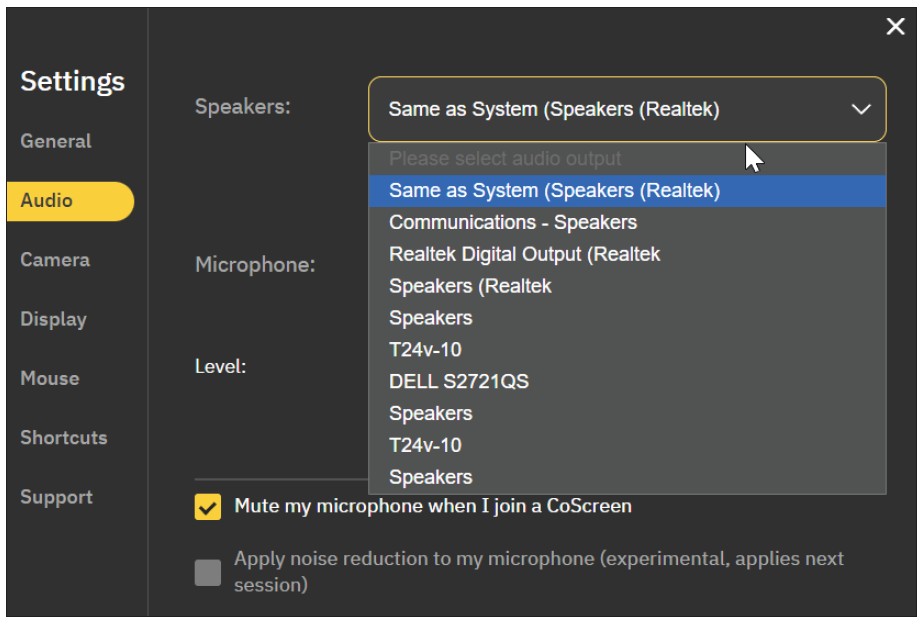
I like CoScreen for screen sharing, but I still use Microsoft Teams for general team communication. Teams is a full-suite communication tool, while CoScreen is meant to cover a specific feature — simultaneous screen sharing and drawing. It lacks many basic features a communication tool should have. For example, I have multiple audio speakers (headset, computer speakers, and a USB conference speaker). CoScreen does not show me the details of each, making it hard to pick the specific speakers I want to use — see the screenshot below.
The free version has some limits when compared with the paid version, but only one stands out. The free version allows only up to 10 participants. However, because I would use this for small group trainings, the free license works for me.
About the author
Wesley Hartman is the founder of Automata Practice Development.
Submit a question
Do you have technology questions for this column? Or, after reading an answer, do you have a better solution? Send them to jofatech@aicpa.org.